Xedant Agent can work as a Telegram bot, so you can talk to the AI from Telegram. The bot creates, manages, and resumes chats, forwards AI replies, supports AskUserQuestion with inline buttons, and shows tool progress — all inside Telegram.
Overview
The integration runs as a background service inside Xedant Agent. The bot polls the Telegram servers itself (a technique called long polling) and listens to chat events, so AI replies are forwarded to Telegram automatically.
- Two-way exchange — prompts sent from Telegram go into the message queue, and AI replies are forwarded back to Telegram
- Chat management — create, stop, resume, and browse chats with commands
- AskUserQuestion — Claude’s questions appear with inline buttons for picking an answer
- Tool progress — optional display of tool calls with status icons
- Model reasoning — optional delivery of thinking messages in italics
- Skill selection — the
/skillcommand switches the active skill
Setup
You can set the bot up in two ways: through the settings dialog (recommended) or manually in the configuration file.
Through the settings dialog
Open Settings → the “Main Telegram Bot” card in the “Automation” group. Turn the bot on, paste the token from @BotFather, enter your web URL, and set the access restrictions. See Settings → Main Telegram Bot for details.
Through telegram.yml
Create a .xedant/telegram.yml file in the project root:
telegram:
  enabled: true
  botToken: $TELEGRAM_BOT_TOKEN    # or a literal token value
  webUrl: https://code.example.com
  allowedUserIds:                    # empty = access is blocked
    - 123456789
  showToolCalls: false
  showThinking: false
The bot token supports environment variable substitution through the $ prefix. This is the recommended approach — keep the token in an environment variable and put only the reference to it in the configuration file.
The bot restarts automatically when you save the configuration. Connection errors never block the application from starting — the bot simply stays offline while Xedant Agent keeps working.
HTTP proxy
If your server cannot reach the Telegram API directly, route the bot through an HTTP proxy with an environment variable:
# The URL-embedded credentials format is supported
AGENT_TELEGRAM_HTTP_PROXY=http://user:password@proxy.example.com:8080
The bot picks up the proxy automatically when connecting to the Telegram API.
Commands
The bot registers its command menu in Telegram automatically — start typing / for autocomplete.
/new [title]— Starts a new chat. The optional title names the chat. Returns a link to the chat in the web interface. The new chat automatically becomes the active one./stop— Stops the current active chat. Sends a stop signal to the Claude Code instance./resume— Shows the 20 most recent chats. Each chat appears as/resume {id}for one-tap resuming./resume <id>— Resumes a specific chat by ID. Returns a link to the chat in the web interface./skill— Shows the activated skills with the current selection marked (✅)./skill <name>— Sets the active skill. That skill loads automatically with your next message./help— Shows help with all commands.
Any message that does not start with / goes into the active chat as a prompt. If there is no active chat, the bot asks you to create one with /new.
Interaction
AI replies
Claude’s replies are forwarded to Telegram automatically. Markdown formatting (bold, italics, code, links, code blocks, quotes) is converted to Telegram HTML. Long messages are split into parts along paragraph boundaries.
Typing indicator
While Claude works on your request, the bot sends a “typing” indicator every 4 seconds, so you can see the process is alive.
AskUserQuestion
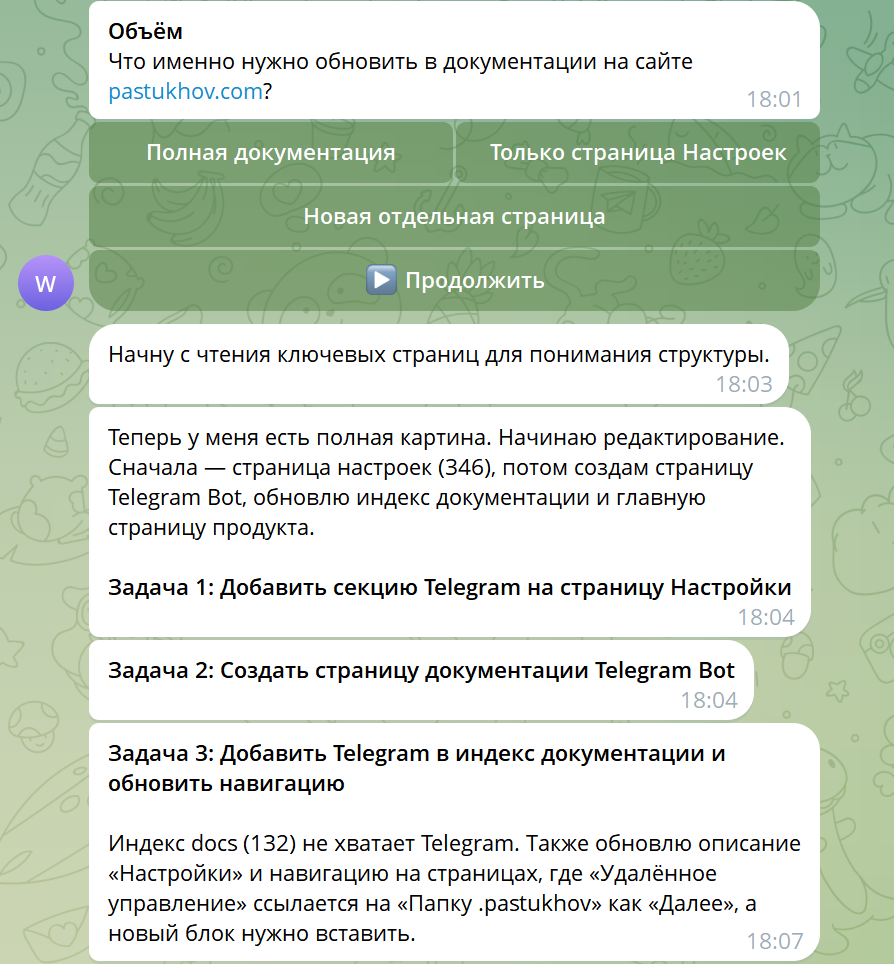
When Claude calls AskUserQuestion (a question to you), the bot shows it with buttons: each answer option gets its own button. Both single-choice and multiple-choice questions are supported. After you pick an option, the button gets a check mark ✓, and the “▶ Continue” button sends your selection back to Claude.
Tool calls
With showToolCalls enabled, the bot shows tool progress in a single message that keeps updating. Each tool comes with a short description (the file path for Read/Write/Edit, the command for Bash, the pattern for Grep) and a status icon: ⏳ (running), ✅ (done), ❌ (failed).
Errors and permission requests are also delivered to Telegram with matching icons (⚠️ for errors, 🔐 for permissions).
Telegram Tag: controlling the agent in group chats
You can add the bot to any group chat and control the agent by addressing it with the bot’s @username or with nicknames you define yourself. It works like Anthropic’s Claude Tag: one shared agent per group, any authorized member can give it tasks, and it works asynchronously with a shared context. You can add several bots to the same chat (one per Xedant Agent or project) and address each by its own name — so a single group chat lets you run several agents at once, each with independent access settings.
- Address by name — the agent reacts when you mention the bot’s
@usernameor one of your nicknames at the start of a message - One shared chat per group — everyone works with the same context; the skill and model are stored at the group level
- Flexible access — everyone sees the conversation, but only permitted users can control the agent
- Teamwork — the agent can read the group’s chat history through daily transcripts
How to address the agent
In a group chat, the bot reacts when you mention it at the start of a message — by the bot’s @username (when matchBotUsername is on) or by one of the configured nicknames. Everything after the trigger becomes a command or a free-form prompt:
john write the release notes       # john is a nickname → task in the shared chat
john new                          # a new shared chat for the group
john stop                         # stop the current run
@mybot summarize today            # addressing by the bot's @username
Nicknames must match ^[A-Za-z0-9_]+$ and are matched on word boundaries (johnny ≠ john); matching is case-insensitive by default. A bare trigger with no text (for example, just john) prints help.
Access and visibility
The main rule of shared chats is who can see versus who can control:
- Anyone can add the bot — any member can add the bot to a chat. The bot joins any group and receives all messages.
- Only permitted users control it — only users from
allowedUserIds(the same list as for private chats) can give it tasks and commands. An empty list means the bot responds to no one in the group. - Everyone sees — all members see the agent’s requests and replies right in the chat. Unauthorized mentions are ignored silently, without extra noise.
- Everything is recorded — the whole group conversation lands in the transcripts, no matter who writes (see below).
Commands in a group
The commands are the same as in private chats, but you call them through a mention, and they apply to the group’s shared chat (the skill and model live at the group level, not the user level):
<trigger> new [title]— a new shared chat for the group; the skill and model carry over automatically<trigger> stop— stop the current run<trigger> resume— list the group’s recent chats (each shown as<trigger> resume <id>)<trigger> resume <id>— resume a specific chat by ID<trigger> skill— show the group’s activated skills (the current one marked ✅)<trigger> skill <name>— pick the group’s skill<trigger> model/<trigger> model <name>— show or pick the model<trigger> help— help for group commands
Any other text after the trigger goes into the shared chat as a prompt. Replies are posted as a reply to your message. A group runs one request at a time — incoming calls queue up, one task at a time.
Chat history and teamwork
To make real teamwork possible, the bot keeps daily transcripts of the whole group conversation: every message (including the agent’s own replies, media, replies, and forwards) is appended to the markdown file .xedant/tag/{group ID}/{date}.md. These files are added to .gitignore and never end up in commits.
Every free-form prompt in the group automatically gets a pointer to the transcripts folder, so the agent can read the chat history and rely on it while working on the task:
If required by the task, management chat transcripts are at .xedant/tag/{group ID}So you can give tasks like “write the release notes based on what we discussed today” — and the agent will find the right context in the group history itself. The suffix is only added to free-form prompts in groups; private chats and the web interface are not affected. The suffix text is configured with the transcriptContextSuffix setting — it must contain the {path} token.
⚠️ For transcripts to accumulate, the bot must have Privacy Mode disabled — otherwise the bot in a group only receives commands, mentions, and replies, not the whole conversation. Disable Privacy Mode in @BotFather (/setprivacy → Disable) or make the bot a group administrator.
Setting up Telegram Tag
Telegram Tag is enabled by a separate tag block in telegram.yml:
telegram:
  enabled: true
  botToken: $TELEGRAM_BOT_TOKEN
  allowedUserIds:               # who can control the bot (both DMs and groups)
    - 123456789
  tag:
    enabled: true               # enable Telegram Tag
    nicknames: [john, dev]      # trigger words (letters, digits, _)
    matchBotUsername: true      # react to @<bot username>
    caseSensitive: false        # match nicknames case-sensitively
    recordTranscripts: true     # keep daily transcripts
    transcriptContextSuffix: "If required by the task, management chat transcripts are at {path}"
    respondInReply: true        # reply to the trigger message
The same settings are available in the settings dialog → the “Telegram” section → the “Telegram Tag” block: a nickname editor, toggles, and a Privacy Mode warning. Changes apply automatically when you save.
Security
- Allow-list access — the
allowedUserIdsfield restricts bot access to specific users by Telegram user ID. Unauthorized users get a message with instructions for the administrator. - Empty list — when
allowedUserIdsis missing or empty, the bot rejects every request with a message that includes your user ID to pass to the administrator. - Token via environment variables — keep the bot token in an environment variable (
$TELEGRAM_BOT_TOKEN) instead of putting it directly in the configuration file. - Session isolation — every Telegram user gets their own session with a separate active chat. One chat can be linked to several Telegram users, but each user only works with their own active chat.
telegram.yml configuration reference
- enabled (bool, default: false) — turns the integration on
- botToken (string) — the bot token from @BotFather, supports
$ENV_VAR - webUrl (string) — the base URL for chat links (default:
http://localhost:5173) - allowedUserIds (list[string]) — the list of permitted Telegram user IDs
- showToolCalls (bool, default: false) — show tool call progress
- showThinking (bool, default: false) — show the model’s reasoning
tag (object) — Telegram Tag settings for group chats (details in the section above). Sub-fields:
- tag.enabled (bool, default: false) — turn Telegram Tag on
- tag.nicknames (list[string]) — trigger words; must match
^[A-Za-z0-9_]+$ - tag.matchBotUsername (bool, default: true) — react to
@<bot username> - tag.caseSensitive (bool, default: false) — match nicknames case-sensitively
- tag.recordTranscripts (bool, default: true) — keep daily transcripts of the group conversation
- tag.transcriptContextSuffix (string) — the suffix pointing to the transcripts folder; must contain the
{path}token - tag.respondInReply (bool, default: true) — post replies as a reply to the trigger message
Configuration changes apply when you save from the settings dialog or restart the server — the file itself is not watched. You can also manage the bot through the REST API (GET/POST /api/telegram/config, GET /api/telegram/status).
Environment variables
- AGENT_TELEGRAM_HTTP_PROXY — HTTP proxy URL for connecting to the Telegram API (optional). Supports credentials embedded in the URL.
Multiple bots
Besides the main Telegram bot, you can run any number of extra bots — each with its own model, skill, system prompt, and its own list of permitted users. Manage them with the “Bots” button in the top bar; the configuration is stored in bots.yml. See Bots for details.
Extra bots pair especially well with automatic scheduled tasks: a task on a schedule collects the data (a script), hands it to the AI for analysis, and the result arrives in Telegram through the right bot — and you can keep the conversation going right in the messenger.
Internals
The bot uses a separate SQLite database, .xedant/telegram.db, to store the mappings between Telegram chats and Xedant Agent chats, plus user sessions (the active chat, the selected skill). For group chats (Telegram Tag), the same database stores each group’s shared mapping to its skill and model, while daily conversation transcripts are written to the separate .xedant/tag/ folder. Data from this database is never synced with the project’s main database.
All Telegram API calls go through a per-chat queue that respects Telegram’s limits (~1 request per second per chat). Frequent tool events are merged — only the latest state is sent.
← Back: Remote Control
Next: Settings →