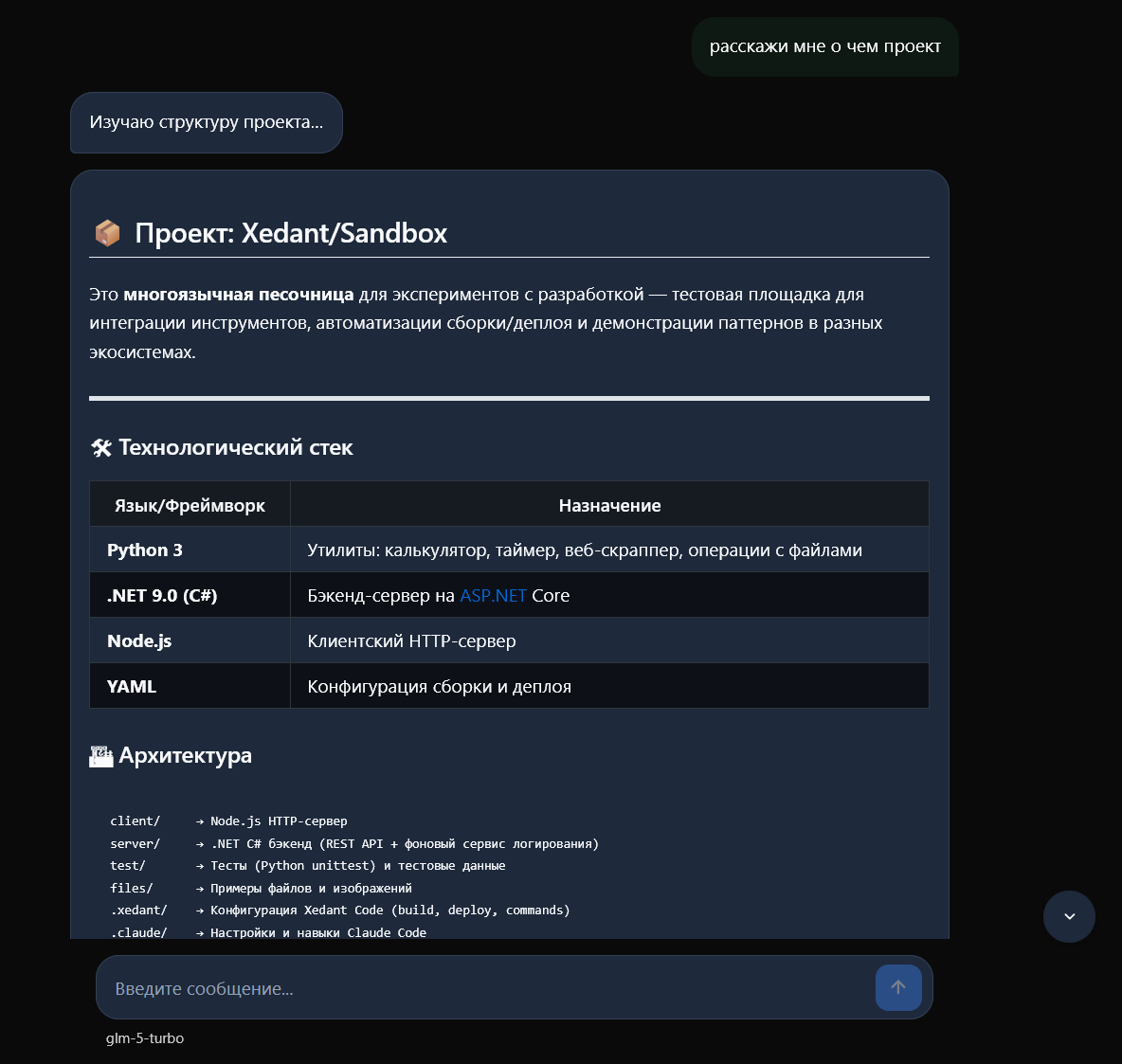
The simplified interface is a mode that turns Xedant Agent into a minimal, ChatGPT-style chat. It hides all the technical controls and shows only the conversation with the AI as chat bubbles. The mode is built for non-technical users who want plain access to the AI without visual noise.
Turn it on with the Simplified UI switch in Settings → Appearance. Switching applies every change instantly, the value is stored on the server, and it syncs across all open tabs through SignalR.
Chat list
On the home screen, the simplified chat list shows only titles and relative time (5 minutes ago, 2 hours ago, yesterday — and so on). All technical metadata is hidden:
- Cost and tokens
- Message count and speed (msg/s, tokens/s)
- Processing time
- Commit count
- Model
- The chat delete button
Chats are listed 50 per page (instead of 10 in the normal mode), and the pagination controls are hidden. The search filter by chat title stays.
Empty chat
When you open a chat with no messages, the usual empty state is replaced by a centered input area in the ChatGPT style:
- A large textarea with the “How can I help you?” placeholder (3 rows, auto-expanding up to 200px)
- A round send button (an up arrow) on the right inside the input container
- The model and skill pickers below the textarea, in a compact form
- Enter sends the message, Shift+Enter adds a line break
- While the AI works, the send button turns into a stop button (a square)
Messages as bubbles
Instead of the standard message view, the simplified mode uses a chat-bubble style:
- Your messages — right-aligned, rounded corners with a “tail” at the bottom left, greenish background
- Assistant replies — left-aligned, rounded corners with a “tail” at the bottom right, card background color
- Copying — the copy button appears on hover (on mobile, when you tap the bubble)
- Maximum width — 680px, or 95% on mobile
Most technical messages are hidden. Only these stay visible:
- User messages
- Assistant replies with real content
- AskUserQuestion — interactive questions from the AI
- PermissionRequest — permission requests
Hidden: all tool messages (Read, Write, Edit, Bash, Glob, Grep, and so on), operation results (success, error), system messages, errors, and statistics.
Input line
When the chat has messages, a compact input line sits at the bottom:
- A single-row textarea that auto-expands up to 4 rows
- The model and skill pickers below the input field
- The send/stop button on the right inside the rounded container
- A smooth transition between send and stop states (~200ms)
Simplified header
Technical elements are hidden from the page header:
- The timer and token counter
- The latest statistics (HeaderStats)
- The favicon reset button
What stays: breadcrumbs (project name + chat title), the theme and sound toggles, the settings icon (the gear opens the settings hub; logout lives inside it, in the “Help & Account” group), and the “New Chat” button.
Hidden elements
With the simplified mode on, these are hidden completely:
- The status panel (git, builds, deploys) — the right side of the screen. The chat takes the full width
- ChatStats — chat statistics above the messages
- The mobile status panel (a drawer at the bottom of the screen)
Builds and deploys keep running in the background — they are just not visible in the interface. You can switch back to the normal mode at any time.