AutoFix is the bridge between your builds and the AI model. When enabled, it watches build results for errors and warnings, wraps them in chat messages, and sends them to the AI for fixing. This creates an automated feedback loop: the model makes changes, builds validate them, errors get fed back, and the cycle repeats until everything passes.
This means you only need to manually validate results after all automated testing and fixes are finished — a huge time and energy saver. When you are implementing a large feature, it may require 30-60 minutes to wait for AutoFix to finish, but all that time is totally yours: you could work on other projects or just take a break. It also reduces mental pressure, because you don’t need to see and react to all these minor compilation, linting and testing errors — you come back only after the code is totally clean, refactored, tested and fully functional.
Enabling and Disabling AutoFix
Find the AutoFix toggle in the chat input area. It works as a simple on/off switch:

- Enable — AutoFix polls builds periodically. When it finds errors or warnings, it injects them as chat messages so the AI model can fix them
- Disable — AutoFix stops monitoring. Build errors appear in the Build panel and you handle them manually — either by fixing them yourself, asking the AI in a chat, or clicking the Send button in the build output dialog
Toggle AutoFix on or off at any time. Enable it when you want hands-off error handling during AI-assisted development, and disable it when you prefer to review and address errors yourself.
How AutoFix Works
AutoFix runs as a background service that polls your builds on a regular interval. Here’s exactly what happens:
- Poll builds — AutoFix checks all builds in dependency order. It looks for the first build that has finished with errors or warnings, making sure all dependent builds have also completed before proceeding
- Prioritize errors — If multiple builds have issues, AutoFix picks errors over warnings. It sends all errors or all warnings from the current build at once, enabling the model to do bulk corrections
- Check for duplicates — Before sending anything, AutoFix checks the last 10 user messages in the current chat. If the same error content has already been sent recently, it skips it to avoid infinite loops
- Inject as chat message — The parsed errors are wrapped in a markdown code block with a
build.logfilename and sent as a user message. For warnings, “fix warnings, don’t ignore them” is appended. The message goes to the most recently active chat session - AI fixes the code — The model receives the error context, analyzes the problem, reads the relevant source files, and makes code changes to resolve the issue
- Builds retrigger — The file changes from the fix trigger the relevant builds automatically. The build parser extracts errors and warnings from the new output
- Cycle repeats or succeeds — If the build passes, the cycle ends and the deploy restarts automatically with the fixed code. If errors remain, AutoFix picks them up on the next poll and the cycle continues
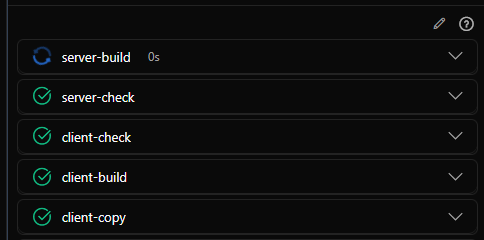
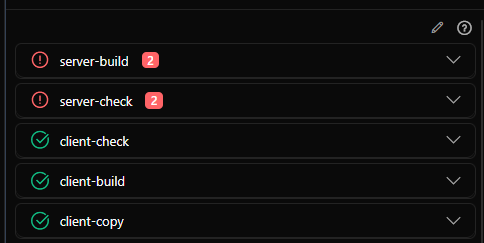

AutoFix only processes when no active AI session is running. It waits until the model is idle and all user-queued messages have been sent and processed before injecting error messages. This prevents conflicts between manual chat work and automated fixes. Prompt builds are always sent only after automated builds pass successfully, ensuring a clean state before heavy AI jobs.
Error vs Warning Handling
AutoFix treats errors and warnings differently:
- Errors — Sent to the AI as-is. The model sees the parsed error output and attempts to fix the underlying problem
- Warnings — Sent with “fix warnings, don’t ignore them” appended. This instruction prevents the model from dismissing warnings as non-critical and encourages it to address them properly
When both errors and warnings exist, AutoFix prioritizes errors. It won’t send warnings until all build errors have been resolved. This ensures the most critical issues are addressed first.
The error and warning content comes from the build parser — the same parsed output you see in the build output dialog. This means AutoFix benefits from every parser pattern you add: the more tools your builds cover, the more error types AutoFix can automatically fix.
Manual Error Submission
You don’t need AutoFix enabled to send build errors to the AI. Every build output dialog has a Send button that works the same way:
- Open a build’s output dialog (click the build name in the Build panel)
- Switch to the Errors or Warnings tab
- Click Send — the content is wrapped in a
build.logcode block and sent to the current chat as a user message
This is useful when AutoFix is disabled but you still want the AI to look at specific errors, or when you want to cherry-pick which errors to send rather than letting AutoFix handle all of them automatically.
There’s also a faster way to fix parser issues directly: select any text in build, deploy, or script output areas (both in panels and dialogs) and a floating Fix parser button appears. Clicking it sends the selected text to the AI with a prompt targeting the corresponding parser file (build.parser, deploy.parser, or output.parser), so the AI can add missing patterns without you typing anything.
Monitoring AutoFix
AutoFix works in the background, but you can always track what it’s doing:
- Chat history — Auto-created messages appear in the most recently active chat. Open it to see the error context that was sent and the AI’s response and code changes
- Build panel — Watch builds trigger, run, and complete in real-time. See error counts go from red to green as AutoFix resolves them. Click error badges to review specific issues
- Deploy panel — Once all builds pass, watch your application restart automatically with the fixed code
- Git panel — After a successful fix cycle, review the changes in the Git panel before committing or pushing
Reviewing AutoFix’s work is good practice. While it handles most routine errors well, occasionally it may make changes that aren’t quite right for your specific use case. A quick review of the diff ensures everything looks correct before committing.
Tip: If you notice the model repeatedly making the same mistake when fixing code, ask it to update CLAUDE.md or its skills to prevent that from happening in the future.
Getting Better Results with More Builds
AutoFix’s effectiveness is directly tied to how many builds you have configured. Each build is an independent quality check that produces structured error output — and AutoFix can fix anything the parser can detect.
A project with only a compiler build gives AutoFix one source of error feedback. Add a linter build, a type checker build, and a test runner build, and AutoFix suddenly has four independent signals. Each catches different categories of problems — syntax errors, code quality issues, type mismatches, logic failures — that the others might miss.
The Creative Builds section of the Build & Deploy page shows examples of validators you can add: linters (eslint, ruff), type checkers (tsc), test runners (dotnet test), security scanners (npm audit), and custom project validators. Each one you add makes AutoFix more effective at keeping your code correct.
To set up new builds, you don’t need to edit configuration files manually. The .xedant/README.md documents the complete build.yml and build.parser formats — just ask the AI model to add the builds you need and update the parser patterns for your tools’ output.
Limitations
AutoFix is powerful, but it has some limits:
- Sequential processing — AutoFix processes one build at a time. It picks the first build with issues and sends all its errors or warnings before moving to the next
- Errors before warnings — AutoFix won’t send warnings to the AI until all build errors have been resolved first
- Duplicate detection — AutoFix checks the last 10 messages for identical content. If the same errors keep appearing after a failed fix attempt, it won’t resend them, preventing infinite loops. But this also means persistent errors that the model can’t fix will eventually stop being reported
- Concurrency limit — AutoFix respects a concurrency limit to avoid overwhelming the system with simultaneous fix sessions
- Waits for idle — AutoFix only processes when no active AI session is running. During an ongoing conversation, error polling pauses
- Not all errors are fixable — Some errors require your input, design decisions, or context that only you can provide. Complex architectural issues, errors spanning multiple interconnected modules, or problems that depend on business logic decisions may exceed AutoFix’s capability
When AutoFix can’t resolve an error, the chat session remains in your history. You can open it, review what the AI tried, and provide additional guidance to help it succeed on the next attempt.
When to Use AutoFix
AutoFix works well for:
- Routine build errors from recent code changes
- Linting issues and simple syntax errors
- Type errors that have a clear resolution
- Common configuration mistakes
- Test failures with straightforward fixes
AutoFix may struggle with:
- Errors that require business logic decisions or your domain knowledge
- Complex architectural changes spanning multiple modules
- Situations where the “fix” depends on your project’s specific requirements
- Errors from tools whose output the build parser doesn’t recognize — in this case, ask the AI to add the appropriate parser patterns