The License Dialog shows your current license status and lets you update your license key. A valid license is required to use Xedant Code beyond the 30-day trial period. You can open the License Dialog by clicking the license info line at the bottom of the status panel.
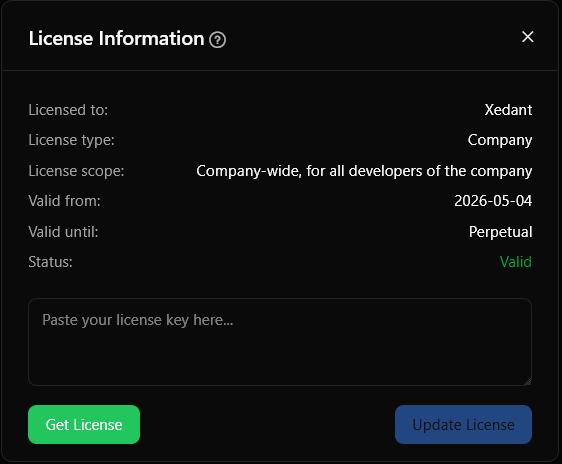
License Information
The dialog displays the following details about your current license:
- Licensed to — the name, company, or domain the license is issued to
- License type — Trial, Personal, Company, or Service
- Scope — a description of what the license covers (see License Types below)
- Email — the license contact email address
- Valid from — the license start date
- Valid until — the license end date, or “Perpetual” for licenses with no expiration
- Status — “Valid” (shown in green) or an error message (shown in red)
License Types
- Trial — free to try for 30 days. Shows the number of days remaining. After expiration, you need to purchase a license to continue using Xedant Code.
- Personal — for a single developer or a single-person company. The license is tied to one user.
- Company — company-wide license, valid for all developers in the company. Any developer can use Xedant Code under this license.
- Service — domain-wide license, valid for all users accessing Xedant Code from the licensed domain. Ideal for hosted/team deployments.
All license types can be perpetual (no expiration date) or time-limited. Perpetual licenses show “Perpetual” as the validity end date and never expire.
License Info Line
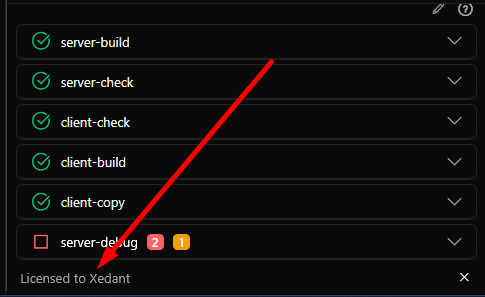
A small info line at the bottom of the status panel shows the current license state. The text varies based on the license status:
- No license — “No license file found”
- Invalid — “Invalid license format”
- Expired trial — “30-day free trial has expired, please upgrade”
- Expired — “{License Type} (Expired)”
- Trial — “Free trial, X days left”
- Valid — “Licensed to {Name}” or “{Type} (X days remaining)”
Click the info line to open the License Dialog. If you have a valid non-trial license, you can hide the info line permanently — either by clicking the × button on the line itself, or by toggling “Show Licensing Info” in Settings. The preference is saved in your browser’s local storage.
Updating Your License
To update or activate your license:
- Obtain a license key from xedant.com/code/license
- Open the License Dialog (click the info line or access via the menu)
- Paste the license key into the textarea in the “Update license” section
- Click “Update License”
The system verifies the new license, writes it to .xedant/license.txt, and reloads the license status. All connected clients receive the update automatically via SignalR — there’s no need to refresh the page.
Where Licenses Are Stored
Xedant Code looks for a license key in three locations, in order of priority:
.xedant/license.txt— a file in your project workspace directory (highest priority). This is where the “Update License” button writes to. Safe to commit if the key is not sensitive.--licenseCLI argument — passed when starting the application (e.g.,./xedant-code --license /path/to/key)XEDANT_CODE_LICENSEenvironment variable — set in your system environment or Docker configuration
The license value can be either the raw license key or a file path — if the value points to an existing file, Xedant Code reads the key from that file.
Troubleshooting
- “Invalid license format” — ensure you’ve pasted the complete license key. License keys are base64-encoded strings starting with
eyJsaWNlbnNlVmVyc2lvbiI6IjEuMCI.... Copy the entire key without any extra whitespace or line breaks. - “No license file found” — place the license key in
.xedant/license.txt, pass it via--licenseCLI argument, or set theXEDANT_CODE_LICENSEenvironment variable. - “Expired” — your license has passed its end date. Visit xedant.com/code/license to purchase or renew.
- Update not taking effect — after clicking “Update License”, the dialog should refresh automatically. If it doesn’t, reload the page. All connected clients receive the update via SignalR within a few seconds.
- License works locally but not in Docker — ensure the license file is accessible inside the container. Mount
.xedant/license.txtas a volume or pass the key via theXEDANT_CODE_LICENSEenvironment variable in your Docker configuration.