Sound feedback lets you monitor build, deploy, commit and chat state by ear — without watching the screen. Xedant Code plays a distinct sound for each event type, so you can run long tasks in the background and develop an intuitive sense of the workflow from audio cues alone.
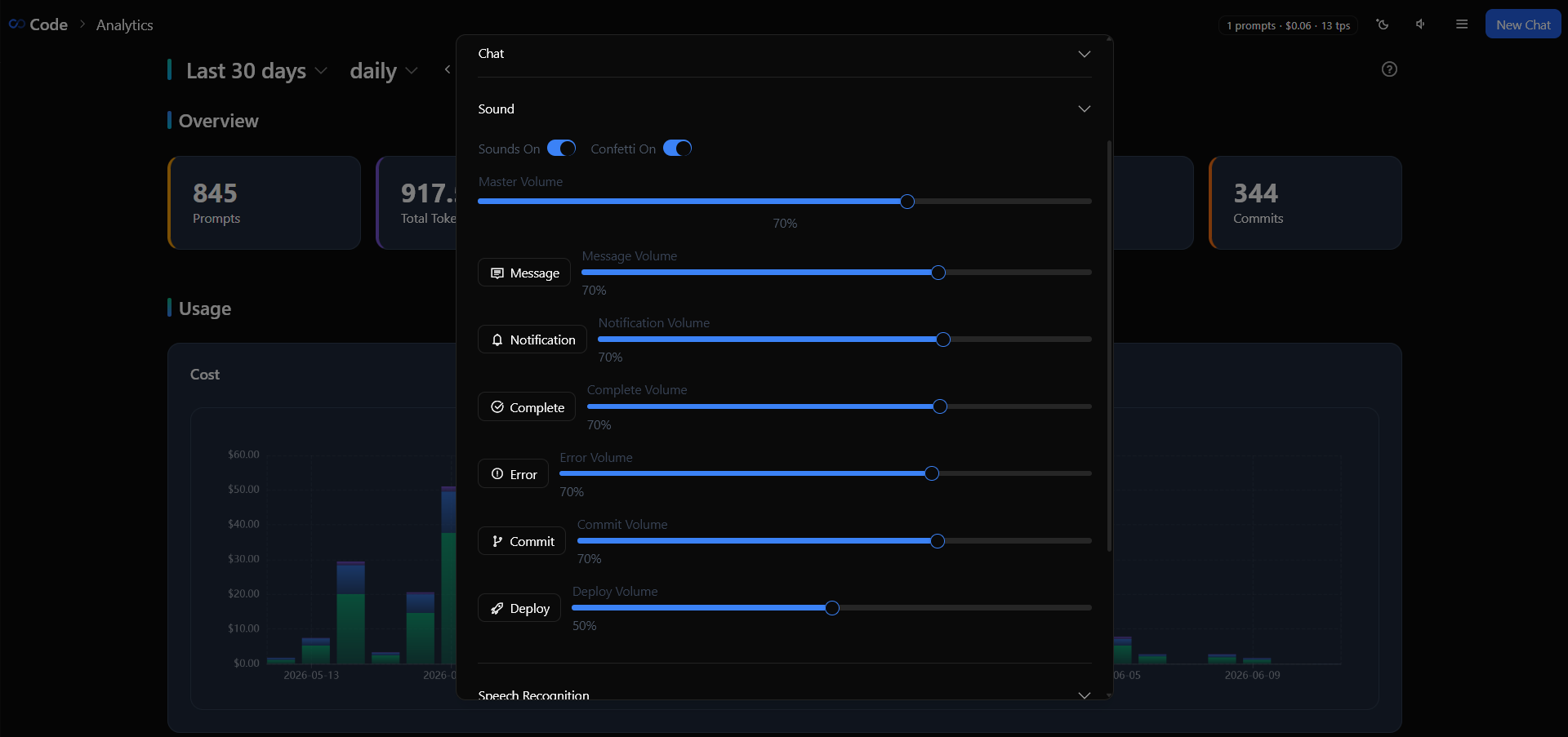
Built-in Sounds
Xedant Code includes six built-in sounds, each mapped to a specific event:
- message — Plays for every arriving AI response, confirming the model is still working
- complete — Plays when the chat or background task finishes processing
- notification — Plays when the chat is waiting for your decision or approval (e.g. an
AskUserQuestionprompt) - error — Plays when a build or task encounters a failure
- commit — Plays when a git commit is created
- deploy — Plays when a deployment starts or completes
Over time you develop an intuitive sense of the workflow from the frequency and sequence of sounds alone — a steady rhythm of message pings means everything is running smoothly, while a sudden silence, notification or error sound signals you to look at the screen.
Build & Deploy Sounds
Each build can have its own sounds that override the global ones. Builds support five sound properties — startSound plays when the build starts, and four result-specific sounds control what plays at completion. The result-specific sounds (successSound, warningSound, errorSound) take priority over the fallback endSound, so you can assign a different sound to each outcome. This is useful when you want a critical security scan to play a loud error sound on failure, or a success chime when tests pass.
build:
  security-scan:
    command: "npm run security-audit"
    watch: "*.ts"
    startSound: "notification"
    successSound: "complete"
    errorSound: "error"
    soundVolume: 1.0

  lint:
    command: "npm run lint"
    watch: "*.ts"
    startSound: ""
    endSound: ""
When a sound field is empty, no sound plays for that event. The endSound property acts as a catch-all fallback — it plays when no result-specific sound is configured for the build’s outcome. The soundVolume field (0-1, default 1.0) controls the volume independently from the global volume settings.
Sound Settings
You have two ways to control sounds:
- Master mute toggle — The speaker icon in the chat header enables or disables all sounds instantly. This is the quickest way to silence everything
- Per-sound volume — In Settings → Sound Settings, each sound type has its own volume slider (0-100%). You can turn down noisy sounds while keeping important ones loud
All sound settings sync across browser tabs in real-time via SignalR, so muting in one tab mutes them everywhere.
Custom Sounds
You can replace any built-in sound by placing an MP3 file with the same name into the .xedant/sounds/ folder in your project — for example, message.mp3, complete.mp3, error.mp3, commit.mp3, deploy.mp3. Custom sounds take priority over the built-in defaults.
For build and deploy sounds, you can use any sound name — the app looks up .xedant/sounds/{name}.mp3 first, then falls back to the built-in wwwroot/sounds/{name}.mp3. This means you can use different sounds for different builds by naming them differently in the config.
Practical Tips
- Use Bluetooth headphones — With a good Bluetooth adapter you can walk around the house while waiting for tasks. Each sound gives you a clear signal about what’s happening without looking at the screen
- Turn down noisy sounds — File-watch builds that re-run frequently can flood you with start/end sounds. Set
soundVolume: 0or leavestartSoundempty for noisy builds, and reserve sounds for meaningful events like deploy completion or security scans - Silence means something’s wrong — If you expect a steady stream of message sounds and suddenly hear nothing, check the screen — the model likely hit an error or is waiting for your input
- Commit confetti — Each successful commit triggers a confetti animation and a sound. Toggle it off in Settings → Sound Settings if you find it distracting