Context tracking shows how much of the model’s context window your conversation takes up. The context window is all the information (your messages, the AI’s replies, code, files, and system instructions) that is sent to the model provider with every message. The model itself stores nothing on your side — the whole context lives on the server, so its size directly affects both the cost and the speed of the answers.
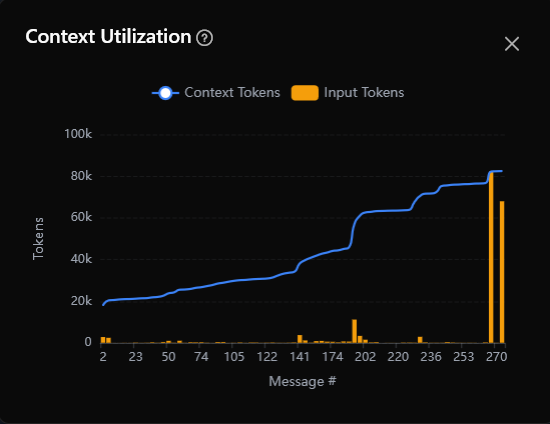
How context grows
The key thing to understand about context: it does not grow bit by bit — it grows very fast. Every message you send includes the entire conversation history, not just the new message. When you send your hundredth message, the model receives all one hundred messages at once.

This has two practical consequences:
- Cost keeps accelerating — every new message makes all the following ones more expensive, because the earlier content is sent again each time.
- The model’s attention spreads thin — the more context there is, the less attention the model gives to each part of it. The model may “forget” things said earlier or miss details of your instructions, and the longer the conversation, the more noticeable this becomes.
So avoid running very long chats when you do not need to: start each new task in a fresh conversation instead of piling everything into one.
Token metrics
Every message adds tokens to the context — tokens are the “units of text” the model uses to measure information. The main figures:

- Input tokens — the text sent to the model in the request: your message plus code, files, and context
- Cache read tokens — tokens taken from the request cache (reused from earlier steps; this is much cheaper than fresh input)
- Output tokens — the text the model generated in its reply
- Context tokens — the total usage per message:
cacheReadTokens + inputTokens(cache plus fresh input) - Context limit — the maximum window size, set by the model provider on their side. The
MODEL_CONTEXT_LENGTHenvironment variable (a named setting the app reads at startup) only affects the display — the progress bar and the charts; set it to your model’s real limit so the figures stay accurate - Utilization percentage — how much of the window is occupied:
(used / limit) × 100
Cost tracking
Cost is calculated and shown at three levels:
- Per message — every AI reply shows its cost in the message details (when token display is enabled). It is calculated from that message’s actual token usage and the active model’s prices.
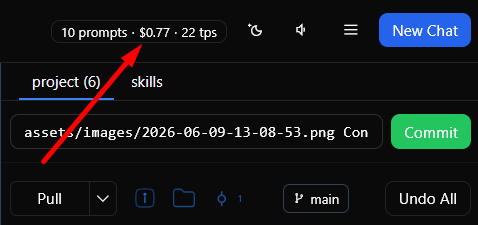
- Per chat — the statistics icon above the chat shows the total cost of the conversation. Hover over it to see the breakdown: message count, cost, tokens per second, and token details (cache, input, output).
- Recent statistics (in the page header) — the icon shows total spending across all chats for the selected period: request count, total cost, and average tokens per second. Clicking the icon changes the period (today, 7 days, this month, and so on) or opens the full analytics page.



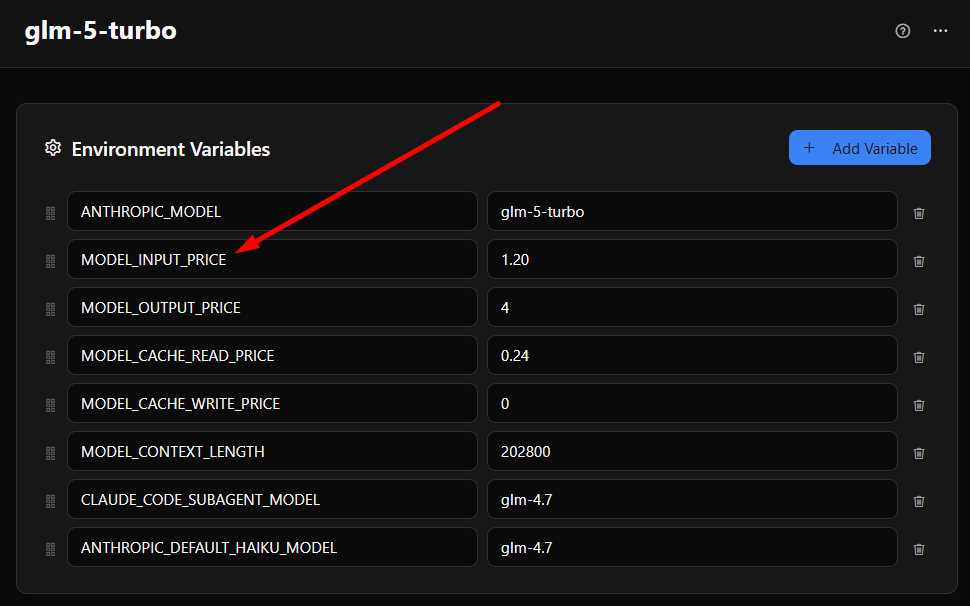
Cost is calculated from four pricing variables of the active model — MODEL_INPUT_PRICE, MODEL_OUTPUT_PRICE, MODEL_CACHE_READ_PRICE, and MODEL_CACHE_WRITE_PRICE — all in dollars per million tokens. When the variables are not set, these defaults are used:
MODEL_INPUT_PRICE— $0.60MODEL_OUTPUT_PRICE— $2.20MODEL_CACHE_READ_PRICE— $0.11MODEL_CACHE_WRITE_PRICE— $0
These defaults come from typical Chinese model pricing (GLM 4.7, for example), not from Anthropic’s price list. If you use Claude or another provider, the numbers will not match. You set your own prices on the Models page — models are organized hierarchically: shared settings (the API address and the access key) only need to be entered once in a parent model, while each model’s prices go in its child models. Priority order: environment variables → system configuration → default values.
Keep in mind: these figures show what your requests would cost at pay-per-token rates. In practice, most users subscribe to developer plans (Claude Max, GitHub Copilot, and the like), which are 10–30 times cheaper. Real pricing is also more complex than a flat rate per million tokens — providers factor in time of day, usage volume, context size, and various discounts or surcharges. So the amounts in Xedant Agent are rough estimates: they are handy for comparing the “weight” of requests and spotting unusually expensive chats. The only source of truth is your provider’s billing or account page — check it regularly.
The context chart dialog
The context utilization chart shows how token usage changes over the course of a conversation. Open it by clicking the context indicator in the chat header. The chart has two data series:
- Context tokens (blue line) — total usage per message, drawn as a smoothed line: cached tokens plus fresh input
- Input tokens (orange bars) — only the fresh tokens per message, the ones that did not come from the cache
The horizontal axis shows message numbers (1, 2, 3…), the vertical axis shows token counts. Values above 1000 are abbreviated (for example, “50k”). Messages with no token usage do not appear on the chart.
How to read the chart: a rising blue line means the model is consuming more and more context — usually because each message drags the whole earlier conversation along with it. The orange bars show where fresh content is added rather than reused from cache.
Context limit
The real context limit is set by the model provider on their side — you cannot change it. The MODEL_CONTEXT_LENGTH environment variable only affects the display in Xedant Agent: the progress bar and the charts. Set it to your model’s actual window size so the percentage and the chart match reality. When the variable is not set, 200,000 tokens is used.
Typical limits by model:
- Claude Opus 4.7 / Sonnet 4.6 — 200,000 tokens
- Claude Haiku 4.5 — 200,000 tokens
- Third-party models — limits vary; set
MODEL_CONTEXT_LENGTHto match the provider’s actual limit
When you switch models, the display updates automatically from the new model’s MODEL_CONTEXT_LENGTH value.
Managing context usage
A few simple ways to keep context usage under control:
- Start a new chat for a new topic — every chat starts with a clean context window. When the focus of your work changes, open a new conversation instead of stretching one long chat. This is the single most effective habit.
- Watch the chart — check the context chart from time to time. If usage is climbing steeply, it is better to finish the current task and start a new chat.
Auto-compaction
When the context reaches roughly 70% of the limit, Claude Code compacts it automatically: the full conversation history is replaced with a short summary the model wrote itself — this frees room for new messages.
You can keep the conversation going after compaction, but there are clear downsides:
- Lost details — a summary is a compressed retelling: nuances, specific instructions, and important small things get smoothed over or lost entirely.
- Distorted meaning — the model may summarize your tasks or instructions incorrectly, and later replies then build on that distorted understanding instead of what you actually said.
- A noticeable break — you will see the model suddenly “remember” from scratch what you are doing, or ask about things that were already discussed.
If compaction has already happened, the best move is to start a fresh chat. The model will rebuild the project context from files, CLAUDE.md, and memory far more accurately than any summary. A clean start is almost always better than continuing after compaction.