Scripts are small programs (executable files) in the project repository that you can run with one click right from Xedant Agent. Files with the .sh extension show a Run button when opened in the editor. The output arrives in real time, is easy to copy, and the script’s work can be stopped at any moment.

You can run scripts from two places — from the Files window (project scripts) and from the Skills window (skill scripts); both use the same editor and execution flow. The difference from builds and deployments is simple: builds start on their own when files change, following the settings in build.yml, while a script is started by you manually — and it can be any executable file in the project.
The script output dialog
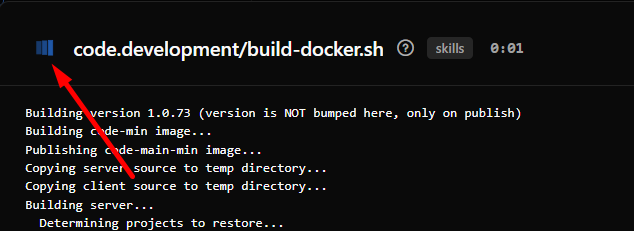
When a script starts, an output window opens automatically, showing:

- Title — the script’s path and name, plus a note about which repository it runs from (project or skills)
- Timer — shows how long the script has been running; after it finishes, the total time
- Status indicator — a spinning icon while it runs (clicking it stops the script), a green check mark on success, or an error mark
- Output area — scrollable text where the output appears in real time
- Copy button — copies the whole output to the clipboard (it is disabled while the script runs)
Output lines are highlighted with color:
- Red — error lines (recognized by the rules from
.xedant/output.parseror by the built-in patterns) - Orange — warning lines
- Normal color — ordinary output
How scripts run
A script runs like this:
- The script’s path turns into a full file path in the repository (of the project or the skills)
- The file gets the right to run —
chmod +xon Unix systems - Bash starts with this file:
/bin/bash path/to/script - The output (regular and error messages) is collected as it arrives and buffered, so the connection is not flooded
- The collected output goes to the browser over SignalR — a real-time communication channel — every 100 milliseconds
- When the process ends, a completion message arrives and the timer stops
Scripts run in the project root. The PYTHONIOENCODING=utf-8 and LANG=en_US.UTF-8 environment variables are set automatically — they keep text in different languages from getting distorted.
Stopping a script
To stop a running script, press the spinning icon in the window title. The server ends the whole process (together with all the child processes it spawned), flushes the collected output, and shows the message “Script stopped by user”.
Closing the output window also stops the script — so it cannot keep working in the background when the window was closed by accident.
Output parsing
The output is parsed automatically to highlight errors and warnings. The rules live in .xedant/output.parser — you usually do not need to edit them by hand. The simplest way is to select an unparsed text in the output and press the floating Fix output.parser button — the selection goes to the AI, and it fixes the rules. For help with the file format, see .xedant/README.md.
[ERROR]
Error:\s+(.*)
[/ERROR]

[WARNING]
Warning:\s+(.*)
[/WARNING]
The built-in patterns recognize common errors without any configuration:
- Shell errors: “command not found”, “Permission denied”, “Segmentation fault”
- Python: Traceback, SyntaxError, ModuleNotFoundError, ImportError
- Node.js: Error:, TypeError, npm ERR!
- .NET: build errors, exceptions
- HTTP: 4xx/5xx codes, “connection refused”, timeouts
Supported repositories
Scripts can run from two repositories:
- Project — the workspace’s main repository
- Skills — the Claude skills directory (
.claude/skills)
The repository shows as a note in the window title — it is always clear where the script was started from.
Scripts vs builds
Scripts and builds solve different tasks:
- Scripts — started manually, with one click; any executable file; the output arrives in real time and the work can be interrupted; no settings file is needed.
- Builds — start automatically when files change; configured in
.xedant/build.yml; the output accumulates in files; when ready, they can start a deployment. For details, see the Build & Deploy page.
Scripts are handy for one-off tasks: run the tests, update data, perform a single operation. Builds are for permanent work: continuous building and automatic processes.