Hooks are ready-made rules for agent actions that apply on their own, without the AI taking part. A rule can forbid the agent to run a dangerous or unnecessary command, or, the other way around, make it run its own check before acting. Because of this you do not need to remind the AI in the chat how to behave every time — the rules fire automatically.
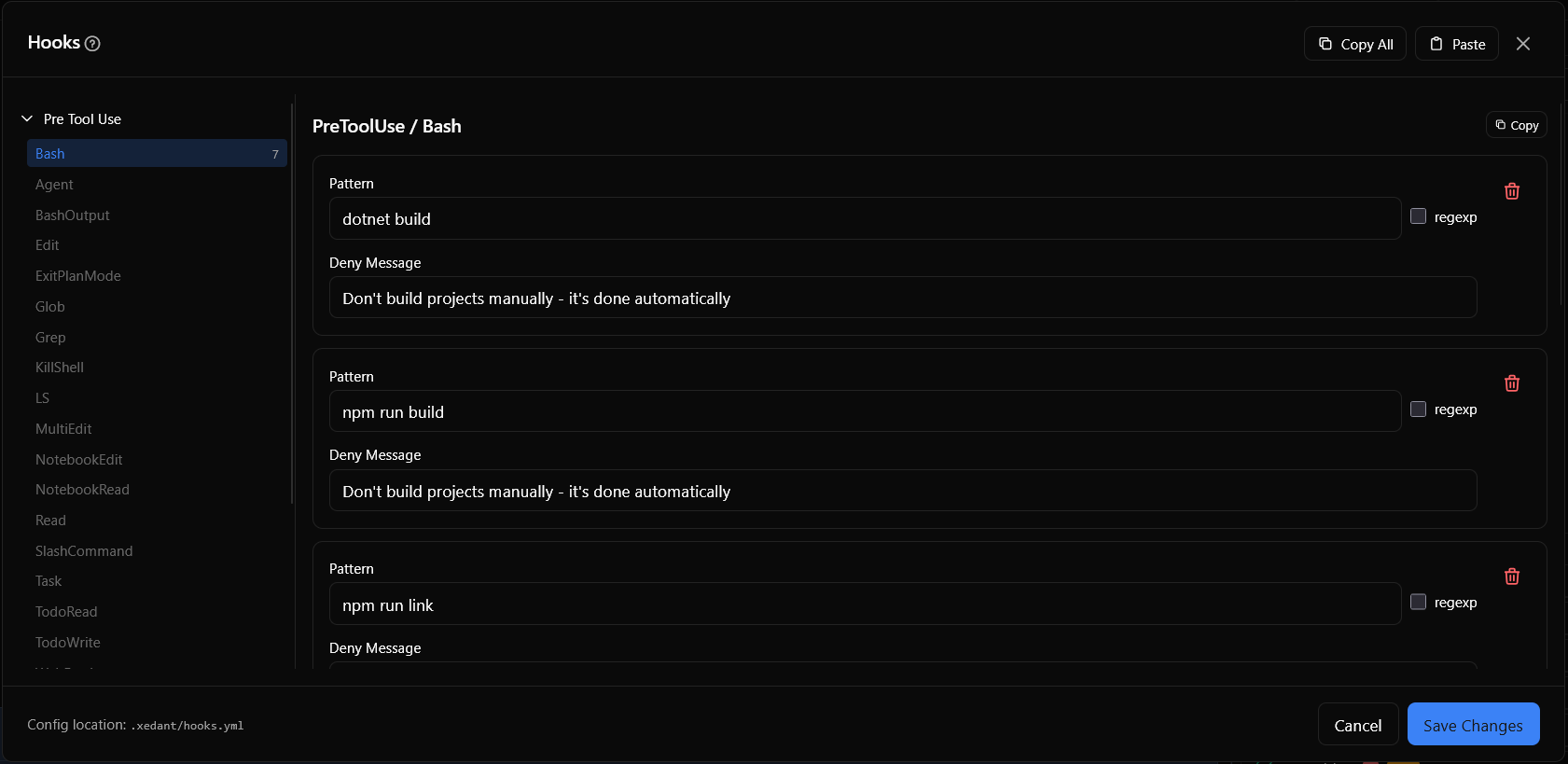
The rules live in the .xedant/hooks.yml file — project settings that are easy to keep under version control. Xedant Agent passes them to Claude Code’s own hook system automatically, and you can change them in a visual dialog instead of editing files by hand.
In practice, the most common use of hooks is not protection from dangerous commands but saving time and money. Project builds start on their own when files change, so every extra manual build or code check the agent decides to run means wasted minutes and spent tokens. Forbid such commands with hooks, and an ordinary session saves dozens of unneeded steps — over a day, the savings add up.
Types of hooks
Xedant Agent has two kinds of hooks — they solve different tasks:
Deny hooks
A deny hook blocks an action when it matches a given pattern. On a match, the tool call is rejected and the user sees the deny message.
- For terminal commands (the Bash tool) — the pattern is compared with the command text
- For the other tools — use
.*as a catch-all pattern (it matches everything) to forbid the tool entirely
Every deny hook has three settings:
- Pattern — the text or template the tool input is compared against
- regexp — turn this on to treat the pattern as a regular expression — a pattern-search language; letter case does not matter then. When it is off, the pattern is searched as a plain piece of text.
- Deny Message — the text the user sees when the hook fires
Execute hooks
An execute hook runs a shell command before the action. It receives data about the tool call (in JSON — a structured form of data) and can return an answer that changes how Claude Code behaves.
- Command — the shell command to run. The
$CLAUDE_PROJECT_DIRenvironment variable is available — it holds the full path to the project.
Hook events
Hooks are grouped by event. One event can hold several hooks — for different tools:
- PreToolUse — fires before a tool runs. This is where the bans and pre-check commands go. Available tools: Agent, Bash, Edit, Write, Read, Glob, Grep, WebFetch, WebSearch, NotebookRead, NotebookEdit, and others.
- UserPromptSubmit — fires when the user sends a message to the AI. Handy when the input needs to be checked or changed before processing.
The Hooks dialog
The Hooks dialog opens from Settings (the Automation section). It is organized by events:
- On the left, pick an event — “Pre Tool Use” (PreToolUse) or “User Prompt Submit” (UserPromptSubmit)
- The tools inside an event are listed alphabetically — pick one to see its hooks
- Add a hook through the form: choose the type (deny or execute) and fill in the fields
- Press “Save Changes” — the settings are written to
.xedant/hooks.yml
Common use cases
Preventing manual builds and linting
Builds start automatically when files change, so the agent does not need to build the project, check the code, or run it by hand. Create deny hooks for the Bash tool under the PreToolUse event — one for every command the agent might try to run:
- Pattern:
dotnet build— message: “Don’t build projects manually – it’s done automatically” - Pattern:
npm run build— message: “Don’t build projects manually – it’s done automatically” - Pattern:
npm run lint— message: “Don’t lint projects manually – it’s done automatically” - Pattern:
npx svelte-check— message: “Don’t lint projects manually – it’s done automatically” - Pattern:
npm run check— message: “Don’t lint projects manually – it’s done automatically” - Pattern:
npm run dev— message: “Don’t start projects manually – it’s done automatically” - Pattern:
dotnet run— message: “Don’t start projects manually – it’s done automatically”
Without such hooks the agent regularly runs builds and checks after every file change — spending time and tokens on what the build system already does by itself. This is the most profitable use of hooks in Xedant Agent.
The configuration file
All the rules live in the .xedant/hooks.yml file. The structure is simple: event → tool → list of hooks:
preToolUse:
  Bash:
    - type: deny
      pattern: "dotnet build"
      message: "Don't build projects manually - it's done automatically"
    - type: deny
      pattern: "npm run build"
      message: "Don't build projects manually - it's done automatically"
    - type: deny
      pattern: "npm run lint"
      message: "Don't lint projects manually - it's done automatically"
    - type: deny
      pattern: "npx svelte-check"
      message: "Don't lint projects manually - it's done automatically"
    - type: deny
      pattern: "npm run check"
      message: "Don't lint projects manually - it's done automatically"
    - type: deny
      pattern: "npm run dev"
      message: "Don't start projects manually - it's done automatically"
    - type: deny
      pattern: "dotnet run"
      message: "Don't start projects manually - it's done automatically"
userPromptSubmit: {}
Rules saved in the dialog are passed to Claude Code’s own hook system automatically: the definitions turn into JSON format and are written to .claude/settings.local.json. Hooks take effect from the next message to the AI in the chat; sessions already running keep the old rules until a new message is sent.
Troubleshooting
- A hook does not fire — check that it is saved and passed to Claude Code: press “Save Changes” in the dialog and make sure the
.claude/settings.local.jsonfile has updated. The rules take effect from the next message — the running conversation keeps using the old ones. - A regular expression does not match — regular expression search does not distinguish letter case. Make sure the pattern covers every input variant, and when in doubt test it in an online regular expression tester.
- An execute hook ends without a result — hook commands have a 60-second timeout: when a command runs longer, it is cut off. Check the command’s syntax and make sure it is available in the system PATH.
- A YAML save error — when the dialog shows a format error, check that the pattern lines hold no YAML special characters without proper quoting. The error text appears at the bottom of the dialog.