MCP (Model Context Protocol) is an open standard that lets you connect external services and data sources to Xedant Agent: databases, file systems, web services, search, and much more. An MCP server is a small separate “go-between” program through which the agent reaches such a service. The agent needs no built-in code for every service — describe the server following the MCP standard, and the model can use it in the conversation.
Think skills first. When there is no pressing need, use scripts inside skills — they give the same access to external data and tools. Here is why: an MCP server adds all of its function definitions and long descriptions to the model’s context, and this overhead is paid at every step of the work. Skills load only when needed, support progressive disclosure (tool details load only on a real call), and give you full control: when you see the model making the same tool-call mistake again and again, you can simply fix the tool’s description.
Besides that, it is often simpler to ask the model to write a small Python script for database or file access than to look for a suitable MCP server and “talk” the model into using it the right way. That is exactly how this whole site is edited: creating and debugging the WordPress scripts took fewer than ten messages, and the result not only works but is also easy to debug and extend.
How it works
MCP servers run as separate processes and talk to Claude Code over a standardized protocol. Xedant Agent stores their settings in the .xedant/mcp.yml file and syncs it with the Claude Code command line, updating the project-level MCP settings (global settings are not touched). At the start of a conversation, Claude Code connects to all enabled servers, and their tools become available to the model on par with the built-in ones.
The connection can go three ways (transport types):
- STDIO — the server runs as a local process on your computer or server. The most common way for Node.js and Python servers;
- HTTP — connection to a remote server over the internet (for cloud MCP services);
- SSE — connection through Server-Sent Events technology; a legacy way, gradually replaced by HTTP.
The MCP Servers window
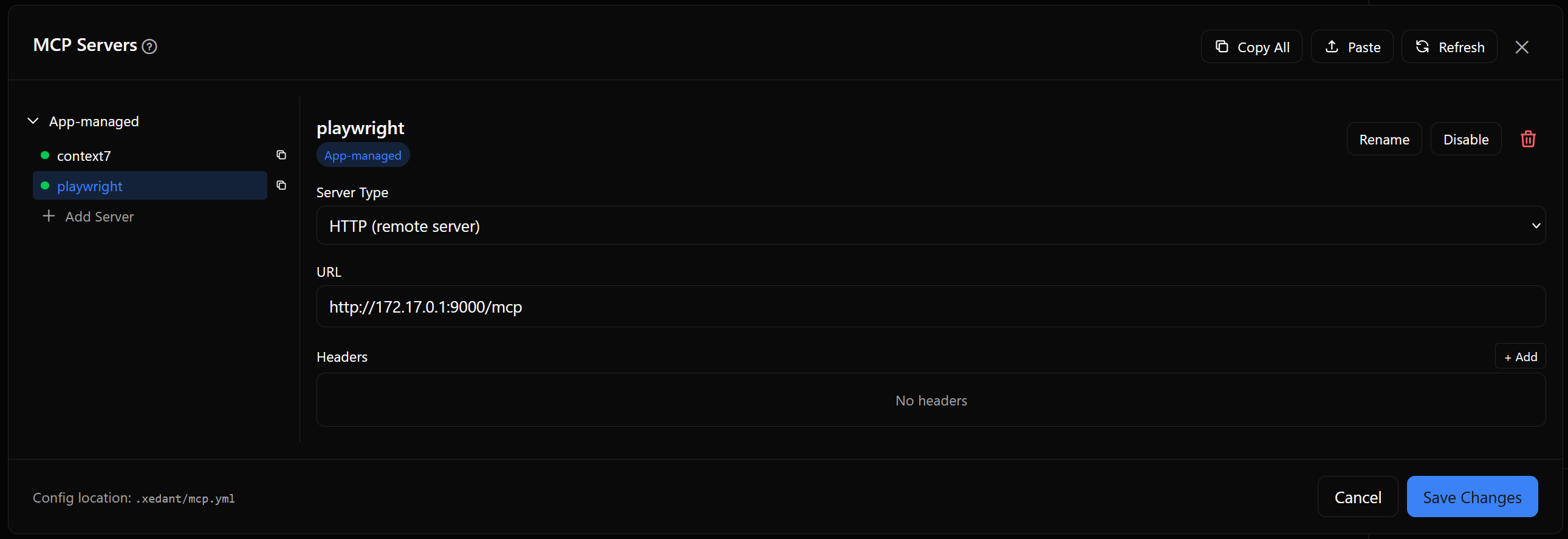
The MCP Servers window opens from Settings (the Automation section). It has two main areas:
- Server list (left panel) — all configured servers, grouped by source: App-managed (configured through Xedant Agent), External (configured directly in the Claude CLI), and Plugins. Each server shows a name and a status indicator (a green dot means enabled).
- Configuration panel (right panel) — the selected server’s settings: view and edit.
The window header holds the settings actions: Copy All (export the configuration to the clipboard as JSON), Paste (load a configuration from the clipboard), and Refresh (re-read the server list from the Claude Code command line).
Adding an MCP server
How to add a new server:
- Open the MCP Servers window from Settings;
- Press Add Server on the list panel;
- Enter a unique server name (names must not repeat);
- Fill in the server parameters on the configuration panel;
- Press Save Changes.
A new server is created with the STDIO transport and an empty command. Pick the right transport type and fill in the fields you need.
Configuration fields
The set of fields depends on the selected transport type:
STDIO servers
- Server Type — the
stdiotransport type for local servers; - Command — the command that starts the server (for example,
npx -y @modelcontextprotocol/server-github). The command is automatically split into the executable and its arguments; - Environment Variables — the environment variables the server receives (for example,
GITHUB_TOKENfor the GitHub server).
HTTP / SSE servers
- Server Type — the
httporssetransport type for remote servers; - URL — the server address (for example,
https://mcp.context7.com/mcp); - Headers — extra request headers (for example, the
CONTEXT7_API_KEYkey for login).
Common fields
- Enable / Disable — turn the server on or off without deleting its settings;
- Rename — rename the server, keeping its configuration;
- Remove — delete the server (with a confirmation).
The configuration file
MCP server settings are stored in the .xedant/mcp.yml file in your project folder. You can safely keep the file in version control: by default it holds no secrets (API keys are usually injected from environment variables).
version: 1.0
servers:
  context7:
    enabled: true
    type: http
    url: https://mcp.context7.com/mcp
    headers:
      CONTEXT7_API_KEY: $CONTEXT7_API_KEY

  github:
    enabled: true
    type: stdio
    command: npx -y @modelcontextprotocol/server-github
    env:
      GITHUB_TOKEN: $GITHUB_TOKEN
The $VARIABLE_NAME notation is a reference to a system environment variable: the value itself stays out of the repository. For more about variable substitution, see the Models page.
Sync: when you save changes in the Xedant Agent window, the app writes the updated configuration to .xedant/mcp.yml and automatically syncs it with the Claude Code command line (the claude mcp add and claude mcp remove commands). The model uses the updated server list right away — nothing needs a restart.
Import and export
The MCP window can move server settings through the clipboard — handy when you want to share servers between projects:
- Copy All — exports the whole server configuration to the clipboard as JSON;
- Copy one server — the copy icon next to the server in the list (“Copy server as JSON”): only that server is exported;
- Paste — loads JSON from the clipboard. When server names conflict with existing ones, the app asks whether to overwrite the existing servers or skip the import.
When something does not work
- The server does not appear in the available list — press Refresh in the window header to re-read the list from the Claude Code CLI. If the server is disabled, enable it and save.
- A STDIO server does not start — check that the command is correct and that the runtime it needs (Node.js, Python, and the like) is installed. The command must be complete, with all its arguments (for example,
npx -y @modelcontextprotocol/server-github). - HTTP server connection errors — check that the address is correct and reachable from your server, and that all the required headers (API keys, login tokens) are filled in.
- Sync errors — when Xedant Agent cannot sync with the Claude Code CLI, check the Claude Code installation path. If needed, set your own path in the
AGENT_CLAUDE_PATHvariable (see Models). - An environment variable is not substituted — make sure the variable is set in the system environment or the Docker configuration, not only in Xedant Agent’s own variables. The
$VARIABLE_NAMEnotation inmcp.ymlis read from the system environment.