The license dialog shows which license you have and how long it lasts, and lets you update the license key. A license is needed to keep using Xedant Agent after the 30-day trial period. Open the dialog by clicking the license line at the bottom of the status panel.
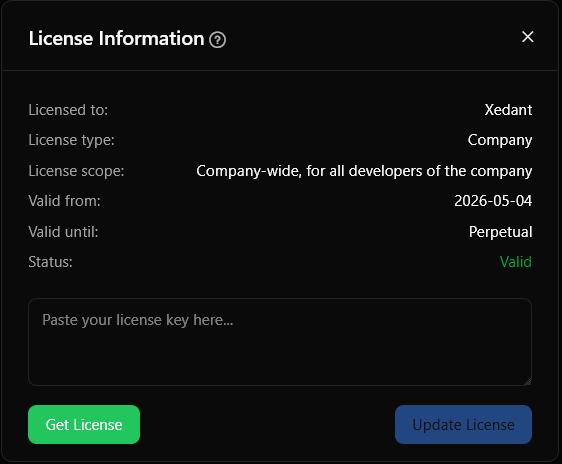
License information
The dialog shows the following details about your license:
- Licensed to — the name, company, or domain the license is issued to
- License type — Trial, Personal, Company, or Service
- License scope — what the license covers (see License types below)
- Email — the license contact address
- Valid from — the start date
- Valid until — the end date, or “Perpetual” when there is no expiry
- Status — “Valid” (shown in green) or an error message (shown in red)
License types
- Trial — a free 30-day introduction. It shows how many days are left. When the time runs out, you need to buy a license to keep using Xedant Agent.
- Personal — for a single developer or a single-person company. The license is tied to one user.
- Company — a license for the whole company: it covers all of the company’s developers. Any developer of the company can use Xedant Agent under this license.
- Service — a license for a whole domain: it covers everyone who signs in to Xedant Agent from the licensed domain. Handy for teams working on a shared server.
Any license can be perpetual (with no end date) or time-limited. Perpetual licenses show “Perpetual” as the end date and never expire.
The license info line
A small info line at the bottom of the status panel shows the current license state. The text depends on the status:
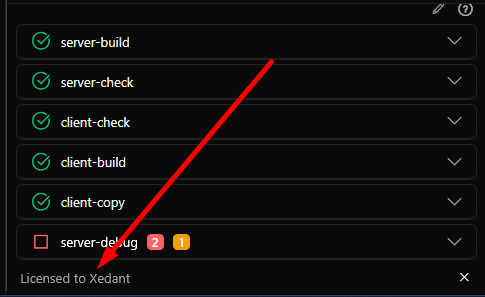
- No license — “No license file found”
- Invalid — “Invalid license format”
- Expired trial — “30-day free trial has expired, please upgrade”
- Expired — “{License type} (Expired)”
- Trial — “Free trial, X days left”
- Valid — “Licensed to {Name}” or “{Type} (X days remaining)”
Click the line to open the license dialog. With a valid paid license, you can hide the line for good — with the “×” button on the line itself, or with the “Show Licensing Info” switch in Settings. The choice is saved in your browser.
Updating your license
To update or activate your license:
- Get a license key on the xedant.com/agents/agent/license page
- Open the license dialog (click the license line, or use the menu)
- Paste the key into the field in the “Update License” section
- Click “Update License”
The system verifies the new license, saves it to .xedant/license.txt, and refreshes the status. Every connected device learns about the update over SignalR by itself — there is no need to reload the page.
Where licenses are stored
Xedant Agent looks for the license key in three places, in this order of priority:
.xedant/license.txt— a file in your project folder (highest priority). This is where the “Update License” button writes to. You can keep it in Git if the key is not secret.- The
--licenseargument — passed when the application starts (for example,./XedantAgent --license /path/to/key) - The
AGENT_LICENSEenvironment variable — set in the system settings or in the Docker configuration
The value can be the key itself or a path to a file: if the given path exists, Xedant Agent reads the key from that file.
Troubleshooting
- “Invalid license format” — check that you pasted the complete key. Keys are base64-encoded and start with
eyJsaWNlbnNlVmVyc2lvbiI6IjEuMCI.... Copy the whole key, with no extra spaces or line breaks. - “No license file found” — place the key in
.xedant/license.txt, pass it with the--licenseargument, or set theAGENT_LICENSEenvironment variable. - “Expired” — the license has passed its end date. For a new or renewed license, go to xedant.com/agents/agent/license.
- The update does not take effect — after you click “Update License”, the dialog should refresh on its own. If it does not, reload the page. The change reaches every connected device over SignalR within a couple of seconds.
- The license works locally but not in Docker — make sure the container can see the license file: mount
.xedant/license.txtas a volume, or pass the key through theAGENT_LICENSEenvironment variable in the Docker configuration.