Sound feedback lets you keep track of builds, deploys, commits, and the chat by ear — without watching the screen. Xedant Agent plays a distinct sound for each event, so you can start a long task in the background and get on with other things: the sound alone tells you whether everything is going well or it is time to come back to the screen.
Built-in Sounds
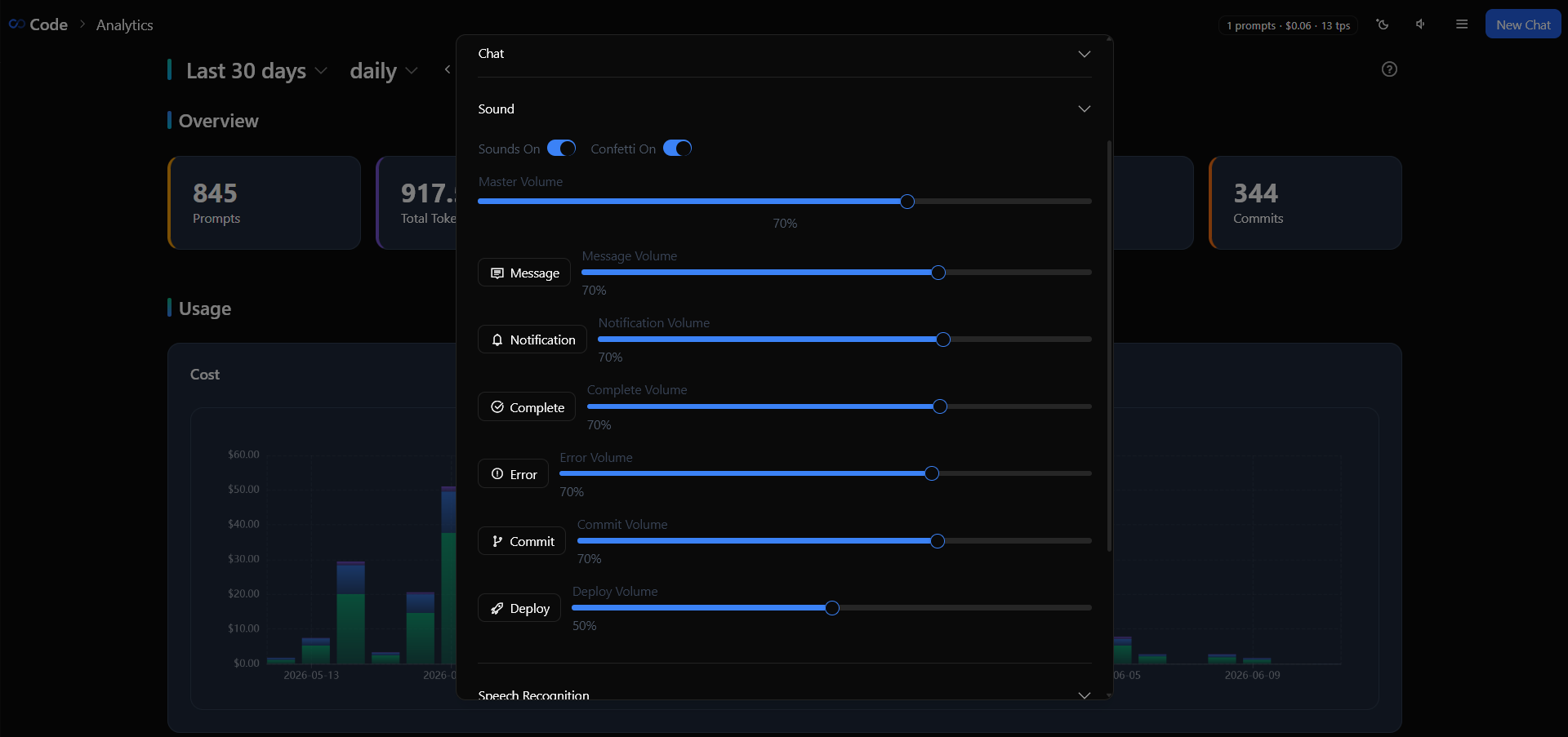
Xedant Agent ships with six built-in sounds, and each one has its own event:
- message — for every new AI response: it confirms the model is still working
- complete — when a chat or a background task finishes processing
- notification — when the model is waiting for your decision or confirmation (for example, it asked you a question)
- error — when a build or a task fails
- commit — when changes are saved to git
- deploy — when a deploy starts or finishes
Over time you will start to read the work by ear: a steady rhythm of messages means everything is going smoothly, while a sudden silence, a notification chime, or an error sound is your cue to look at the screen.
Build and Deploy Sounds
Each build can have its own sounds that override the shared ones. Five sound fields are supported: startSound plays when the build starts, and four result fields decide what plays when it finishes. The outcome-specific sounds — successSound (success), warningSound (warning), errorSound (error) — take priority over the general endSound, so you can assign a different sound to each outcome. For example, give a critical security check a loud error sound when it fails, and the tests a success tune when they pass.
build:
  security-scan:
    command: "npm run security-audit"
    watch: "*.ts"
    startSound: "notification"
    successSound: "complete"
    errorSound: "error"
    soundVolume: 1.0

  lint:
    command: "npm run lint"
    watch: "*.ts"
    startSound: ""
    endSound: ""
If a sound field is empty, no sound plays for that event. endSound is the universal fallback: it plays whenever the build’s result has no sound of its own. The soundVolume field (0 to 1, default 1.0) sets the volume independently of the general settings.
Sound Settings
There are two ways to control the sounds:
- Mute everything — the speaker icon in the chat header instantly turns all sounds on or off. The fastest way to silence everything at once
- Volume per type — in Settings → Sound, every sound type has its own volume slider (0–100%). You can turn noisy sounds down while keeping the important ones loud
All sound settings sync between browser tabs in real time: mute the sound in one tab, and it goes silent everywhere.
Custom Sounds
You can replace any built-in sound: put an MP3 file with the same name into the .xedant/sounds/ folder of your project — for example, message.mp3, complete.mp3, error.mp3, commit.mp3, deploy.mp3. Your file takes priority over the built-in one.
Build and deploy sounds can use any name: the app first looks for .xedant/sounds/{name}.mp3, and if it is not there, falls back to the built-in wwwroot/sounds/{name}.mp3. This makes it easy to give different builds different sounds — just give them different names in the settings.
Practical Tips
- Use headphones — with Bluetooth headphones you can wait for tasks to finish without sitting in front of the screen: every sound tells you clearly what is going on
- Turn down noisy builds — builds that watch files and restart often will flood you with start and finish sounds. Set
soundVolume: 0for them or leavestartSoundempty, and save the sounds for the events that matter — a deploy finishing or a security check - Silence is a cue to check — if you normally hear a steady stream of messages and it suddenly goes quiet, look at the screen: most likely the model has hit an error or is waiting for your answer
- Confetti on commits — every successful commit comes with a confetti animation and a sound. If it distracts you, switch off the Confetti On toggle in Settings → Sound