Prompt builds are the most advanced validation mechanism in Xedant Agent. Regular builds run fixed commands (compilation, tests), while a prompt build hands the check to a separate AI agent: it receives the assignment in plain language (a prompt), works through your codebase on its own, and reports the problems it finds. The reviewer agent’s reasoning happens in an isolated chat, so it never clutters your main conversation. Its output is parsed by the same rules as any other build’s, and the errors it finds can be passed to AutoFix.
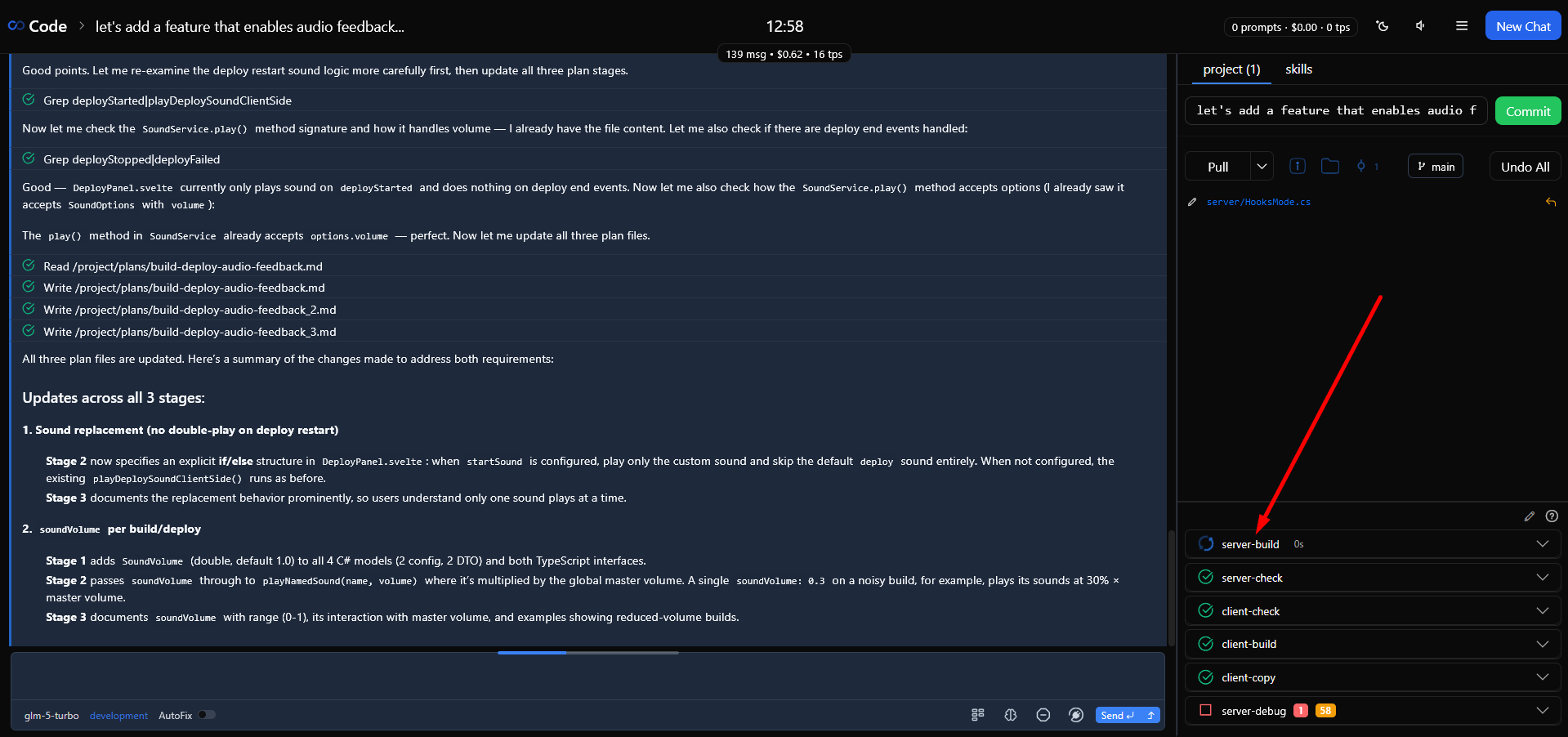
How Prompt Builds Work
In build.yml, a prompt build uses the prompt field instead of command. When it starts, the app creates a new chat session, sends the prompt as the first message, and watches for the agent’s reply:
build:
  ai-review:                          # build name
    watch: chat                       # runs after your chat completes
    prompt: "/verify Review the recent code changes. Read the chat transcript at {chat} and report any problems."
    chatTitle: "Code Review"          # title of the sub-agent chat
    delay: 5                          # pause before starting, seconds
    timeout: 120                      # time limit for the sub-agent, seconds
    display: always
    autofix: always
The watch: chat trigger fires when your session is finished: your message queue is empty and AutoFix has completed its work with no errors or warnings left. Even when a prompt build has autofix enabled, it starts only after the command builds have fixed their own errors — so the reviewer agent always works with a clean state. The {chat} placeholder is replaced with the path to your conversation’s transcript, giving the sub-agent the full context. The chatTitle field also supports {buildName} — the build’s name — for dynamic titles.
A Separate Chat for the Sub-Agent
Prompt builds create a separate chat with its own context window (the conversation’s working memory):
- Isolated context — the sub-agent’s reasoning and actions run in its own chat, so they don’t take tokens (the chunks of text you pay for) from your main conversation or clutter it
- Link to the main chat — every sub-agent chat stores a reference to the original conversation (
ParentChatId). The result is a traceable chain you can see on the analytics dashboard - Chat title — the
chatTitlefield sets the sub-agent chat’s title; if you leave it out, the title is derived from the prompt. The{buildName}placeholder is filled in automatically - Collecting the result — when the sub-agent finishes, its last message becomes the build output. If the
outputFilefield is set, the output is read from that file instead — you can have the agent write its summary to a file, which is more reliable and easier to debug
The sub-agent runs within the configured timeout (in seconds); if it overruns, its instance is stopped and the build finishes. The app tracks readiness through the instance manager: as soon as the chat’s processing ends, the output is extracted and parsed.
Output Parsing and AutoFix
The sub-agent’s output is parsed by the same .xedant/build.parser file used for command build output. Any patterns you have tuned for your tools work here too: if the sub-agent’s reply matches the [ERROR] or [WARNING] rules, the problems are extracted in structured form.
Prompt builds take part in AutoFix on equal terms with command builds:
autofix: always— the sub-agent’s errors are passed to the main chat for fixingautofix: errors— AutoFix runs only for real errors (not warnings)autofix: never— the build is informational only: you can see the sub-agent’s analysis in the build panel, but it triggers no fixes
Build output is stored in the .xedant/build/ folder in the same format as command builds — three files: {build-name}.output.txt (the output), {build-name}.errors.txt (errors), and {build-name}.warnings.txt (warnings).
Configuring Prompt Builds
Prompt builds support the same settings fields as command builds, with prompt used instead of command:
build:
  security-audit:                     # security audit
    watch: chat
    prompt: "/verify Check the code for security: hardcoded secrets, SQL injection vulnerabilities, unreliable dependencies. Read the transcript at {chat} for context about the recent changes."
    chatTitle: "Security Audit"
    delay: 10
    timeout: 300
    display: errors
    autofix: errors

  test-generation:                    # test generation
    watch: chat
    prompt: "/verify Write tests for the code changes from the {chat} transcript. Run the tests and report any failures."
    chatTitle: "Test Generation"
    delay: 5
    timeout: 180
    display: always
    autofix: always
How to Write a Good Validation Prompt
- Load a skill — the skill is delivered to the sub-agent automatically, so you don’t need to add anything to the prompt text (see the Skills page for details). The skill’s full contents —
SKILL.mdand the files in its folder — enter the context. A code review skill gives the agent the standards to check your code against - Reference the transcript — use
{chat}so the sub-agent sees the whole conversation. Without it, the sub-agent knows only what you wrote in the prompt - Say exactly what to check — “check for problems” is vague. “Check for null references, missing error handling, and incorrect async patterns” gives the agent concrete criteria
- Set the reply format — to have the output parsed automatically, ask the sub-agent to format its errors to match your parser rules. The best place to explain the format is the skill — that way it becomes reusable
Combining Triggers
Like command builds, each prompt build watches exactly one event: file changes, the names of other builds, or the chat event. The chat trigger is available to builds of every type. If you want one prompt build to react to several events, use the parent-child scheme from the automated builds guide: create a few lightweight parent builds — one per event — and have the prompt build watch them. Set display: never on the parent builds to keep them off the build panel.
Useful Patterns
- A check after every session — a prompt build with
watch: chatre-checks the AI’s work after every conversation, on its own. The sub-agent catches what compilers and linters miss: architectural problems, logic errors, and violations of the project’s rules - Security audit — a dedicated prompt build checks for secrets in the code, SQL injection patterns, unreliable dependencies, and other weaknesses that automated tools may not notice
- Test generation and runs — a prompt build that writes and runs tests gives you a check that static analysis cannot provide. If the generated tests fail, AutoFix feeds the failures back so the code gets fixed
- Chaining with command builds — a prompt build that follows a command build forms a two-stage pipeline: the command build catches static errors, the prompt build catches semantic ones. Set up the command build first, in dependency order
- Keep the sub-agent’s context narrow — load the one skill you need and reference the transcript. Extra skills dilute the agent’s attention and make the check less useful
- Manual runs for heavy checks — remove the
watchtrigger and setautofix: never: the build stops starting on its own but stays on the build panel, where you can start it with one click. This is a convenient way to run large whole-project audits after major updates instead of after every chat
For the complete build system reference, see Build & Deploy. For automatic error fixing, see AutoFix. For controlling sub-agent context, see Analytics & Observability.