AutoFix is a mode where the agent watches your project’s checks by itself and fixes the errors it finds right away. It is tied to your builds (automatic code quality checks): when a build reports an error or a warning, AutoFix packs that text into a chat message and sends it to the AI model to fix. The result is a closed loop: the model edits the code, the builds check it again, the errors come back — and so it repeats until everything passes clean.
For you this means checking and repairing code by hand is needed only after the agent has finished all of its automatic fixes. Implementing a large feature can take 30–60 minutes of waiting, but all that time is fully yours: work on other tasks or simply take a break. It is both convenience and peace of mind — you do not need to react to every small compilation, linting, or test error. You come back to the project when the code is already clean, tested, and working.
How to turn it on and off
The AutoFix toggle sits in the message input area — a plain on/off switch:

- On — the agent checks the builds periodically. When it finds errors or warnings, it adds them to the chat as a message, so the AI model can fix them.
- Off — the agent does not watch the builds. Errors show up in the build panel, and you deal with them by hand: fix them yourself, ask the AI in the chat, or press the Send button in the build result window.
You can turn it on and off at any moment: on — when you want the agent to work through errors by itself during development; off — when you prefer to review and resolve them yourself.
If you do not need the toggle in the input area, you can remove it: in the settings (Automation → Buttons) there is a “Show AutoFix toggle” switch. AutoFix itself keeps working by its own state (on or off).
How it works
AutoFix is a background service: on its own, without you, it polls the builds from time to time. Here is what happens, step by step:
- Polling the builds — the agent checks all builds in turn, in dependency order. It looks for the first build with errors or warnings and waits until every build it depends on has finished.
- Errors first — if several builds have problems, the agent starts with errors, not warnings. All errors (or all warnings) of one build are sent at once — so the model can fix them all in one go.
- Duplicate check — before sending, the agent looks at the last 10 of your messages in the current chat. If the same error content was already sent recently, it skips it — so no endless loops appear.
- Adding to the chat — the parsed errors are placed into a code block named
build.logand sent as an ordinary message. For warnings, the instruction “fix warnings, don’t ignore them” is added. By default every task runs in its own new chat — so background fixes never mix with your current work; such a chat’s title usually shows it is an AutoFix run, and the “AutoFix in new chats” switch (Settings → Automation → Buttons) brings back the old behavior of sending everything into the last active chat. - The model edits the code — given the error context, the model analyzes the problem, reads the source files it needs, and makes the edits.
- The builds restart — any file change automatically runs the matching builds, and their results are parsed again for errors and warnings.
- The loop repeats or ends — when a build passes cleanly, the loop ends, and the deployment (starting the application) restarts automatically with the fixed code. If errors remain, AutoFix picks them up on the next check, and the loop continues.
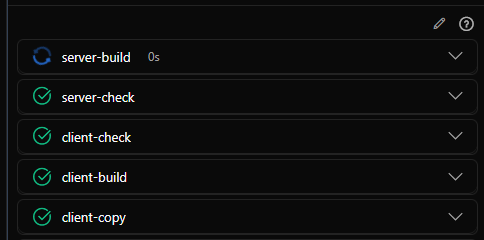
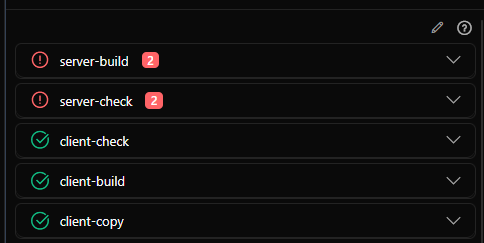

AutoFix works only while the model is free: it waits for the agent to finish the current reply and process every message in your queue, and only then adds the error messages. That way the automatic fixes never get in the way of your work in the chat. Prompt builds (builds with heavy tasks for the AI) always run only after the ordinary builds have passed — so the code is known to be in order before the hard work starts.
Errors and warnings
The agent treats errors and warnings differently:
- Errors — sent to the model as they are. The model sees the error text and tries to remove its cause.
- Warnings — sent with the addition “fix warnings, don’t ignore them”. That way the model will not wave them off as unimportant, but will actually resolve them.
When there are both errors and warnings, the agent deals with the errors first and leaves the warnings alone until every error is fixed. The most important problems are solved first.
The error and warning texts come from the build parser — the same parsed output you see in the build result window. This means AutoFix uses every parser template you have added: the more tools your builds cover, the more kinds of errors the agent can fix on its own.
Sending errors by hand
You do not have to turn on AutoFix to ask the AI to fix build errors. Every build result window has a Send button that does the same thing:
- Open the build result window (click the build’s name in the build panel);
- Switch to the Errors or Warnings tab;
- Press Send — the content goes into a
build.logcode block and arrives in the current chat as a message.
This is handy when AutoFix is off but you want to show the model specific errors, or when you want to choose yourself what exactly to send instead of handing everything to the agent.
There is also a faster way to repair the parser itself: select any text in the build, deployment, or script result windows (both in the panels and in the dialogs) — a floating “Fix …parser” button appears. Clicking it sends the selected text to the model with a hint for the right parser file (build.parser, deploy.parser, or output.parser), and the model will add the missing templates itself.
Where to watch the work
AutoFix labors in the background, but you can always watch it:
- Chat history — the automatic messages appear in their own new chat (or in the last active one — when the “AutoFix in new chats” switch is off). Open it to see the error context, the model’s reply, and the edits it made.
- Build panel — you can see builds start, run, and finish, while the error counters turn from red to green as they get fixed. The error icons open the details.
- Deployment panel — after all builds pass, you can see the application restart with the fixed code.
- Git panel — after a successful fix cycle, the changes are visible in the Git panel before you commit or push them.
Peeking into AutoFix’s work is a good habit. It handles most routine errors perfectly, but sometimes it makes edits that do not quite fit your project. A quick look at the diff before committing makes sure everything looks the way it should.
Tip: if the model keeps repeating the same error while fixing, ask it to update CLAUDE.md or your skills so it never happens again.
More builds, better results
The value of AutoFix depends directly on how many builds you have configured. Every build is an independent quality check with its own readable list of errors, and the agent can fix everything the parser can see.
A project with a single compilation build gives AutoFix one source of errors. Add a linting build (code style checks), a type-checking build, and a test-running build — and the agent has four independent signals. Each catches its own class of problems — syntax errors, sloppy code, type mismatches, logic failures — that the others might miss.
The Creative Builds section of the Build & Deploy page has examples of such checks: linters (eslint, ruff), type checks (tsc), test runs (dotnet test), security scanners (npm audit), and project-specific checks. Every build you add makes AutoFix stronger.
You do not need to set up new builds by hand: .xedant/README.md describes the build.yml and build.parser formats. Just ask the model to add the builds you need and to update the parser templates for your tools’ output.
Limitations
AutoFix is powerful, but not almighty. Here are its limits:
- One build at a time — the agent takes the first build with problems, sends all of its errors or warnings, and only then moves to the next one.
- Errors first — warnings are not sent to the model until every error of the build is fixed.
- Duplicate protection — the agent checks the last 10 messages for identical content. If the same errors keep coming back after a failed fix, it will not send them again. This saves you from endless loops, but it also means stubborn errors the model cannot fix eventually stop being reported.
- One fixer at a time — a limit on the number of simultaneous fixing sessions is enforced, so the system is never overloaded.
- Waits for a free model — during an active conversation the error polling pauses and resumes once the agent is free.
- Not everything is fixable — some errors need your decision: context, business logic, or architectural choices only you know. Complex problems that span several connected modules often sit beyond what AutoFix can do.
When AutoFix cannot beat an error, the chat session stays in the history. Open it, see what the model tried, and give it extra instructions — on the next attempt it will succeed.
When to turn on AutoFix
AutoFix is great at:
- Routine build errors left over from recent edits;
- Code style problems and simple syntax errors;
- Type errors with an obvious solution;
- Frequent configuration errors;
- Failing tests with simple fixes.
AutoFix can struggle with:
- Errors that need business-logic decisions or your knowledge of the domain;
- Complex architectural changes touching several modules;
- Cases where the “fix” depends on your project’s specific requirements;
- Errors from tools whose output the build parser does not recognize — in that case, ask the model to add the missing parser templates.