Hooks let you intercept and control Claude Code’s tool usage by defining rules that run automatically before specific actions. You can block dangerous commands, run validation scripts, or enforce policies — all without prompting the AI to follow instructions.
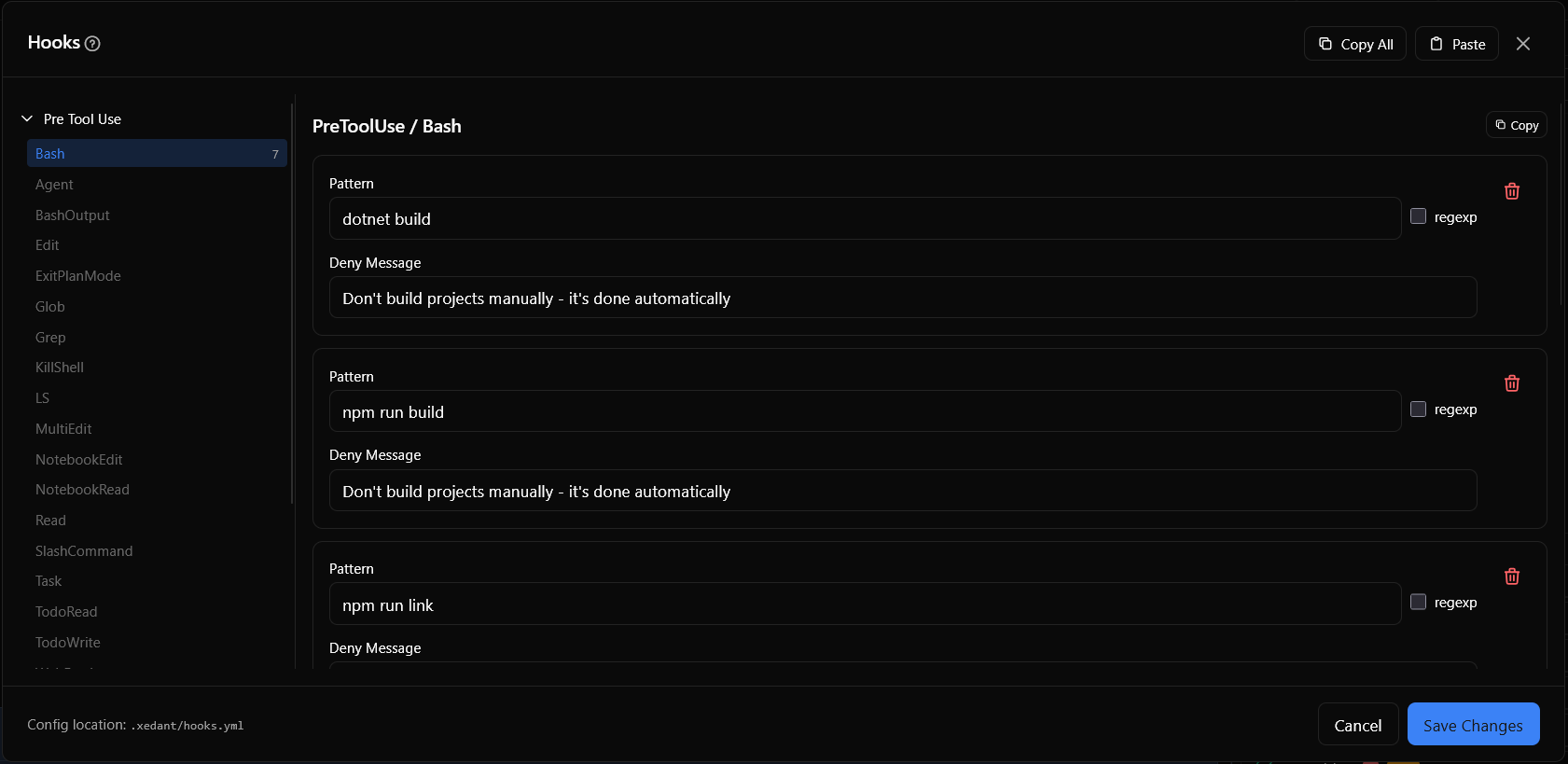
Hook configurations are stored in .xedant/hooks.yml and automatically synced to Claude Code’s native hooks system. Xedant Code provides a visual dialog for managing hooks instead of editing YAML files by hand.
The most common use for hooks is not blocking dangerous commands — it’s preventing the model from running build and lint commands manually. Builds are triggered automatically on file edits, so every manual build or lint the model runs is wasted time and tokens. With hooks denying these commands, a typical session saves dozens of unnecessary tool calls, compounding into significant time savings over time.
Hook Types
Xedant Code supports two hook types that serve different purposes:
Deny Hooks
Deny hooks block tool execution by matching patterns against the tool’s input. When a match is found, the tool call is denied and a message is shown to the user.
- For Bash tools — the pattern is matched against the command string
- For other tools — use
.*as a catch-all pattern to deny the tool entirely
Each deny hook has three fields:
- Pattern — the text or regex pattern to match against the tool input
- Regex — enable to treat the pattern as a regular expression (case-insensitive). When disabled, the pattern is matched as a substring.
- Message — the denial message shown to the user when the hook triggers
Execute Hooks
Execute hooks run a shell command before the tool executes. They receive context about the tool call via stdin (as JSON) and can return structured output that influences Claude Code’s behavior.
- Command — the shell command to run. The
$CLAUDE_PROJECT_DIRenvironment variable is available, containing the project’s absolute path.
Hook Events
Hooks are organized by event type. Each event can have multiple hooks assigned to different tools:
- PreToolUse — runs before a tool is executed. This is where you define deny rules and pre-execution commands. Available tools: Agent, Bash, Edit, Write, Read, Glob, Grep, WebFetch, WebSearch, NotebookRead, NotebookEdit, and others.
- UserPromptSubmit — runs when the user submits a prompt to the AI. Use this to validate or modify user input before processing.
Hooks Dialog
Open the Hooks dialog from the main menu. The dialog is organized by event sections:
- Select an event section (PreToolUse or UserPromptSubmit) from the left panel
- Within each event, tools are listed alphabetically. Select a tool to see its hooks.
- Add hooks using the hook definition form — choose the type (deny or execute) and fill in the fields.
- Click “Save” to persist the configuration to
.xedant/hooks.yml.
Common Use Cases
Prevent Manual Builds and Linting
When builds run automatically on file edits, the model should never attempt to build, lint, or start the project manually. Create deny hooks on the Bash tool under PreToolUse for each command the model might try:
- Pattern:
dotnet build— message: “Don’t build projects manually – it’s done automatically” - Pattern:
npm run build— message: “Don’t build projects manually – it’s done automatically” - Pattern:
npm run link— message: “Don’t lint projects manually – it’s done automatically” - Pattern:
npx svelte-check— message: “Don’t lint projects manually – it’s done automatically” - Pattern:
npm run check— message: “Don’t lint projects manually – it’s done automatically” - Pattern:
npm run dev— message: “Don’t start projects manually – it’s done automatically” - Pattern:
dotnet run— message: “Don’t start projects manually – it’s done automatically”
Without these hooks, the model routinely runs build and lint commands after every edit — wasting time and tokens on actions the build system already handles. This is the single most impactful use of hooks in Xedant Code.
Configuration File
Hook configuration is stored in .xedant/hooks.yml. The YAML structure maps event types to tools and their hook definitions:
preToolUse:
  Bash:
    - type: deny
      pattern: "dotnet build"
      message: "Don't build projects manually - it's done automatically"
    - type: deny
      pattern: "npm run build"
      message: "Don't build projects manually - it's done automatically"
    - type: deny
      pattern: "npm run link"
      message: "Don't lint projects manually - it's done automatically"
    - type: deny
      pattern: "npx svelte-check"
      message: "Don't lint projects manually - it's done automatically"
    - type: deny
      pattern: "npm run check"
      message: "Don't lint projects manually - it's done automatically"
    - type: deny
      pattern: "npm run dev"
      message: "Don't start projects manually - it's done automatically"
    - type: deny
      pattern: "dotnet run"
      message: "Don't start projects manually - it's done automatically"
userPromptSubmit: {}
Changes saved in the dialog are automatically synced to Claude Code’s native hooks configuration. The sync process converts the YAML definitions into JSON format and writes them to .claude/settings.local.json, so the hooks take effect on the next user prompt in the chat. Currently running sessions still use the old hooks until a new prompt is sent.
Troubleshooting
- Hook not triggering — verify the hook is saved and synced. Click “Save” in the dialog and check that
.claude/settings.local.jsonwas updated. Hooks take effect on the next user prompt — existing conversations continue using the old hooks until a new prompt is sent. - Regex pattern not matching — regex matching is case-insensitive. Make sure your pattern accounts for variations in the input. Test your pattern using an online regex tester if needed.
- Execute hook failing silently — execute hooks have a 60-second timeout. If the command takes longer, it’s terminated. Check the command syntax and ensure it’s available in the system PATH.
- YAML save errors — if the dialog shows a YAML error, check that pattern strings don’t contain special YAML characters without proper quoting. The error message is displayed in the dialog footer.