Scripts are executable files in your repository that you can run on demand from Xedant Code. Shell scripts (.sh) show a run button in the file editor when opened. When executed, output is streamed in real time to the Script Output dialog, where you can monitor progress, copy results, or stop a running script.

Scripts can be run from two places — the Files dialog (project files) and the Skills dialog (skill files). Both use the same file editor and execution flow. Scripts are different from builds and deploys — builds are automated by file watchers and configured in build.yml, while scripts are run manually and can be any executable file in your repository.
Script Output Dialog
When a script is executed, the Script Output dialog opens automatically showing:

- Title bar — displays the script path, name, and repository badge (project or skills)
- Execution timer — shows elapsed time while the script runs, and final duration on completion
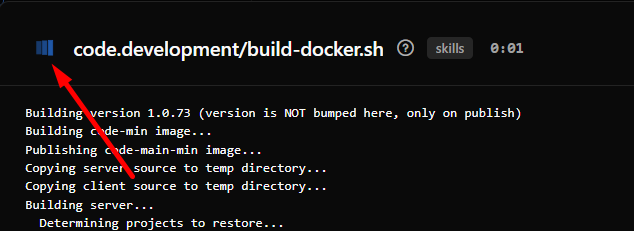
- Status indicator — spinning icon while running (clickable to stop), green checkmark on success, or error state on failure
- Output area — scrollable, pre-formatted text showing script output in real time
- Copy button — copies the full output to clipboard (disabled while the script is running)
The output area highlights lines with color coding:
- Red — error lines (matched by rules in
.xedant/output.parseror built-in patterns) - Orange — warning lines
- Default — normal output
How Scripts Execute
Scripts run through this flow:
- The script path is resolved to a full file path within the repository (project or skills)
- The file is made executable (
chmod +xon Unix systems) - A bash process is launched with
/bin/bash scriptPath - Output (stdout and stderr) is captured asynchronously and buffered to prevent flooding
- Buffered output is streamed to the browser via SignalR every 100ms
- When the process exits, a completion message is sent and the timer stops
The working directory for script execution is the project root. Environment variables PYTHONIOENCODING=utf-8 and LANG=en_US.UTF-8 are set automatically.
Stopping a Script
To stop a running script, click the spinning stop icon in the dialog header. The server kills the entire process tree (including child processes), flushes any buffered output, and sends a “Script stopped by user” message.
Closing the dialog also stops the script automatically — this prevents scripts from continuing to run in the background if you accidentally navigate away or dismiss the output window.
Output Parsing
Script output is automatically parsed to highlight errors and warnings. Parsing rules are defined in .xedant/output.parser — there is no need to edit this file manually. The easiest way to fix parser patterns: select unparsed text in the output and click the floating Fix parser button to send it to the AI. See .xedant/README.md for the parser file format reference.
[ERROR]
Error:\s+(.*)
[/ERROR]

[WARNING]
Warning:\s+(.*)
[/WARNING]
Built-in detection patterns cover common error formats without any configuration:
- Shell errors: “command not found”, “Permission denied”, “Segmentation fault”
- Python: Tracebacks, SyntaxError, ModuleNotFoundError, ImportError
- Node.js: Error:, TypeError, npm ERR!
- .NET: Build errors, exceptions
- HTTP: Status codes 4xx/5xx, connection refused, timeouts
Supported Repositories
Scripts can be executed from two repositories:
- Project — the main workspace project repository
- Skills — the Claude skills directory (
.claude/skills)
The repository is shown as a badge in the dialog header so you always know which context the script is running in.
Scripts vs. Builds
Scripts and builds serve different purposes in Xedant Code:
- Scripts — run on demand, any executable file, real-time output via SignalR, interactive stop capability. No configuration file required.
- Builds — triggered automatically by file changes, configured in
.xedant/build.yml, output cached to files, can trigger deploys on completion. See Build & Deploy for details.
Use scripts for ad-hoc tasks like running tests, data migrations, or one-off operations. Use builds for continuous compilation and automated workflows.