Git change validation gives you immediate visibility into what the AI model changed on disk. While the chat output validation shows you the diffs the model intended to make, git change validation shows you what actually happened — the real file system state. Xedant Code tracks git changes in real-time and links them to your chat conversations for full traceability.
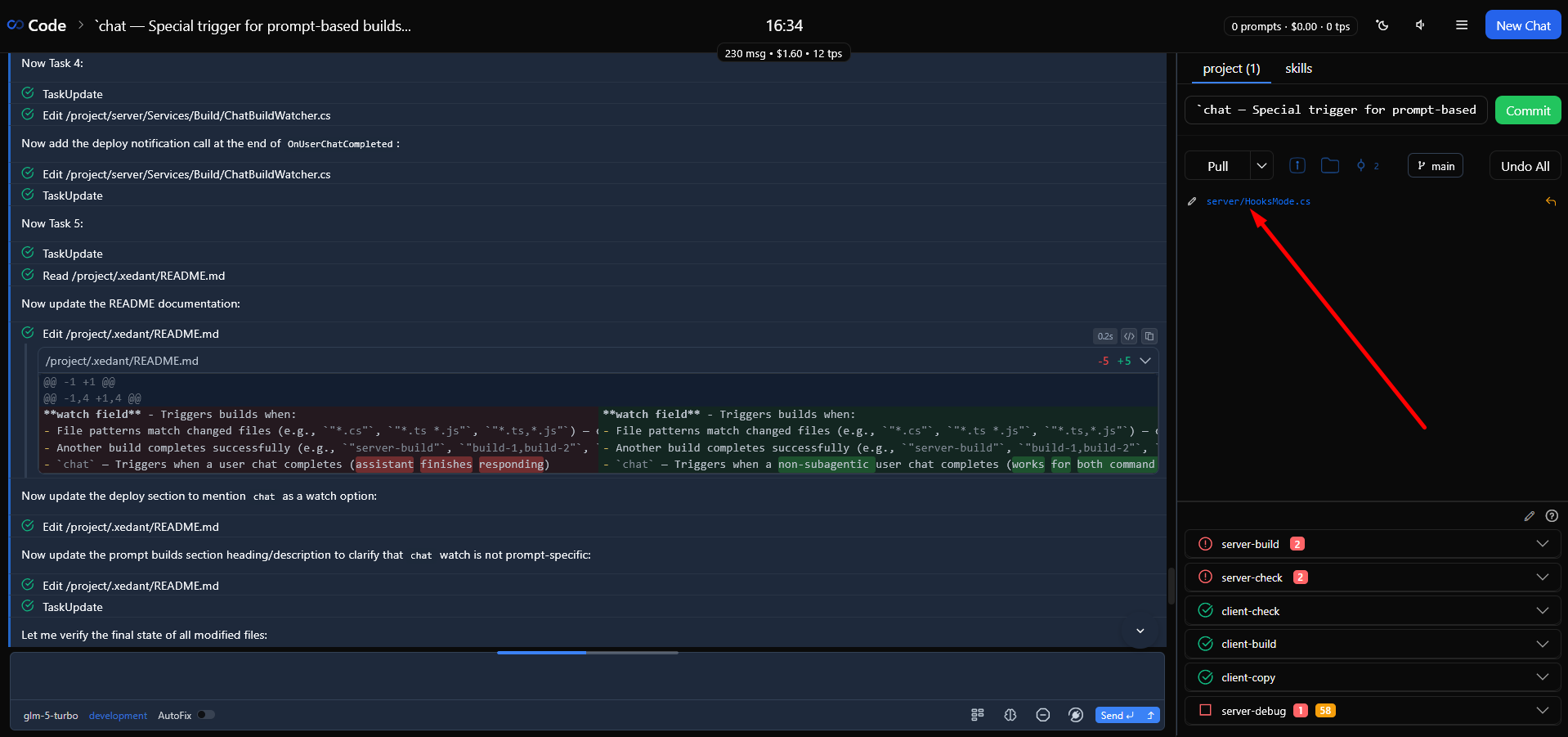
The Git Panel
The git panel right to the chat view shows the current state of your repository. It refreshes instantly when changes are detected on the server with 15 seconds sync updates fallback to ensure correct state.
- Two tabs — Project (your main workspace) and Skills (the
.claude/skillsdirectory). Each repository is tracked independently - File list — Every changed file appears with its relative path, status icon (modified, added, deleted, renamed, untracked), and a changes summary showing additions and deletions
- Status caching — Git status is polled with a 2-second server-side cache, so rapid updates don’t overwhelm the system
The file list is sorted alphabetically and limited to 1000 files for performance, but you could load all files if you wish by clicking “load more” button, just make sure your browser could handle that amount of data. In case of large-scale repo updates, you would not need to inspect more files in real-world scenarios anyway.
Quick Commit and Rollback
Xedant Code provides one-click commit and rollback actions directly in the git panel, so you can validate and act on changes without switching to a separate git interface.
Quick Commit
- The commit message field auto-populates from the chat title — so if your chat is “Add user authentication”, the commit message becomes “Add user authentication”
- Click Commit (or press Enter) to stage all changes, commit, and push to the remote in one action
- The commit is automatically linked to the current chat session for traceability
The commit message and chat title stay in sync — editing one updates the other. For skills repository commits, the message is auto-generated from the modified skill file names instead of the chat title.
🎉 Each successful commit triggers a confetti animation and a sound effect. To mute the sound, use the speaker toggle in the header or adjust the commit volume in Settings → Sound Settings. To disable confetti, toggle it off in Settings → Sound Settings via the Confetti On switch.
File Rollback
Each changed file has an undo button in the git panel. Clicking it rolls back that specific file:
- Tracked files — Runs
git checkout -- pathto restore the file to its last committed state - Untracked files — Deletes the file directly from the filesystem
There is also an “undo all” option that rolls back every change at once: git checkout -- . for tracked files and git clean -f -d for untracked files. Use this when the model made widespread unwanted changes and you want to start fresh. In real-world coding scenearios, it’s easier and faster to start from scratch in a new chat rather than fix tons of incorrectly modified files because of the model incorrectly understood your requirements.
Chat-Commit Linking
Every commit created through the UI is automatically linked to the active chat session. This creates a bidirectional traceability chain: from any commit, you can navigate back to the conversation that produced it, and from any chat, you can see all the commits it generated.
From Chat to Commits
The git panel includes a commits dropdown showing all commits linked to the current chat. Each entry displays the commit message, date, and a clickable link to the commit detail page. The chat list also shows a commit count badge next to chats that have linked commits.
From Commits to Chat
The Commits page lists all commits across all chats. Each commit shows its hash, message, date, branch, and the linked chat (if any). Click “View Chat” to open the conversation that produced that commit — useful for understanding the context and reasoning behind a change.
Project vs Skills Repository
Xedant Code tracks two separate git repositories, each with its own tab in the git panel:
- Project — Your main workspace directory. Commit messages are auto-generated from the chat title. Normal commit, stage, and push workflow.
- Skills — The
.claude/skillssubdirectory. Commit messages are auto-generated from modified skill file names. An automatic pull with rebase runs before committing to prevent branch divergence.
Both repositories share the same quick commit and rollback interface. Changes to skills files (instructions, scripts, sub-documents) that the model makes during a session appear in the skills tab and can be committed independently.
Effective Validation Patterns
- Review before committing — After the model finishes working, check the git panel before committing. Scan the file list for unexpected changes — files you didn’t ask to be modified are a sign the model went off-track.
- Use rollback for bad changes — If the model made unwanted modifications, click undo on individual files or use “undo all” to reset everything. Then tell the model what went wrong and let it try again. For large-scale errors, it’s always easier to undo all then start from scratch in a fresh chat rather than asking models to correct its mistakes in dozens of files.
- Commit frequently — Create checkpoints after each successful task even if you plan for some small updates — they could be misunderstood by the model and you would lose all your previous progress. If a subsequent task goes wrong, you can roll back to a known good state. Linked commits make it easy to find the exact conversation that produced each checkpoint.
- Check commit history — Periodically review the commits page to see the overall trajectory of changes across sessions. Look for patterns: are there recurring types of unwanted changes that could be prevented with hooks, CLAUDE.md or skills?
For the complete git feature reference, see Git. For commit history browsing, see Commits. For automated commit workflows, see Hooks: Model Behavior Control.