Git in Xedant Agent lives in two places. For everyday operations — staging changes, committing, push, pull, stash — there is the Git sidebar in every chat. The full commit history with search and change inspection is on the Commits page.
The Commits page shows the commit history of the project repository: there is search, a branch filter, and a change view (diff) for every file. Commits are linked to chats: when the agent commits changes during a conversation, the commit is automatically attached to that chat.
Git sidebar
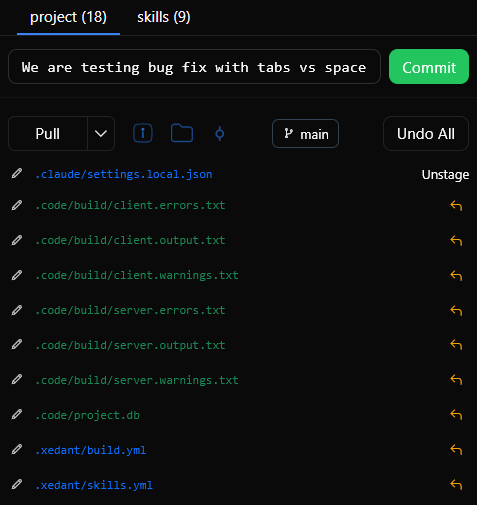
The Git panel is the main tool for working with Git right inside the chat. On a computer it sits in the right panel of every chat; on a phone it slides up from the bottom. The panel shows the Git state in real time, lets you commit quickly, and manages files in the Project and Skills repositories.
The Project and Skills tabs
The panel has a project tab with the state of the project’s Git repository. The tab’s badge shows the number of changed files.
Status and quick commit
At the top of the tab you see the current branch and the ahead/behind counters — how far the local commits have run ahead of the server or fallen behind it. Below is the quick commit field, with the chat title already filled in as the commit message. As soon as changes appear, the commit button becomes active: one click and all changes are staged and recorded.
Changed files
The list shows all modified, added, deleted, renamed, and new (untracked) files, each with a color-coded status mark. Any single file can be unstaged or reverted on its own. The Undo All button reverts every change. The same place has the operations for syncing with the remote repository — pull (fetch someone else’s changes), stash (set your own edits aside), unstash (bring the set-aside edits back), and stash/pull/rebase (set aside, fetch, then apply your edits on top).
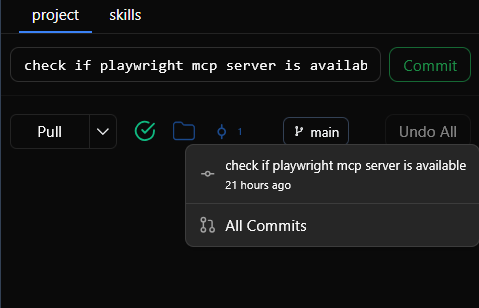
Commits menu
The commits menu button sits in the file list header. It carries the number of commits linked to the current chat; clicking it opens the list of recent commits (message + relative time). Click a commit to open its details, and the All Commits button at the bottom leads to the full Commits page.
Real-time updates
The panel updates itself over SignalR (the live connection between the app and the server) — when the agent stages changes, commits, pushes, or edits files, the status, the file list, and the commit counter appear instantly, with no manual steps. There is also a refresh button for reloading the Git state by hand.
Commits overview
The main Commits page shows repository cards — one for each repository (Project and Skills). Each card displays:
- Repository name — “Project” or “Skills”
- Total commits — the total number of commits in the repository
- Linked commits — commits created while working with the AI and attached to chats
- Unlinked commits — commits with no chat attached
Click a card to open that repository’s commit list.
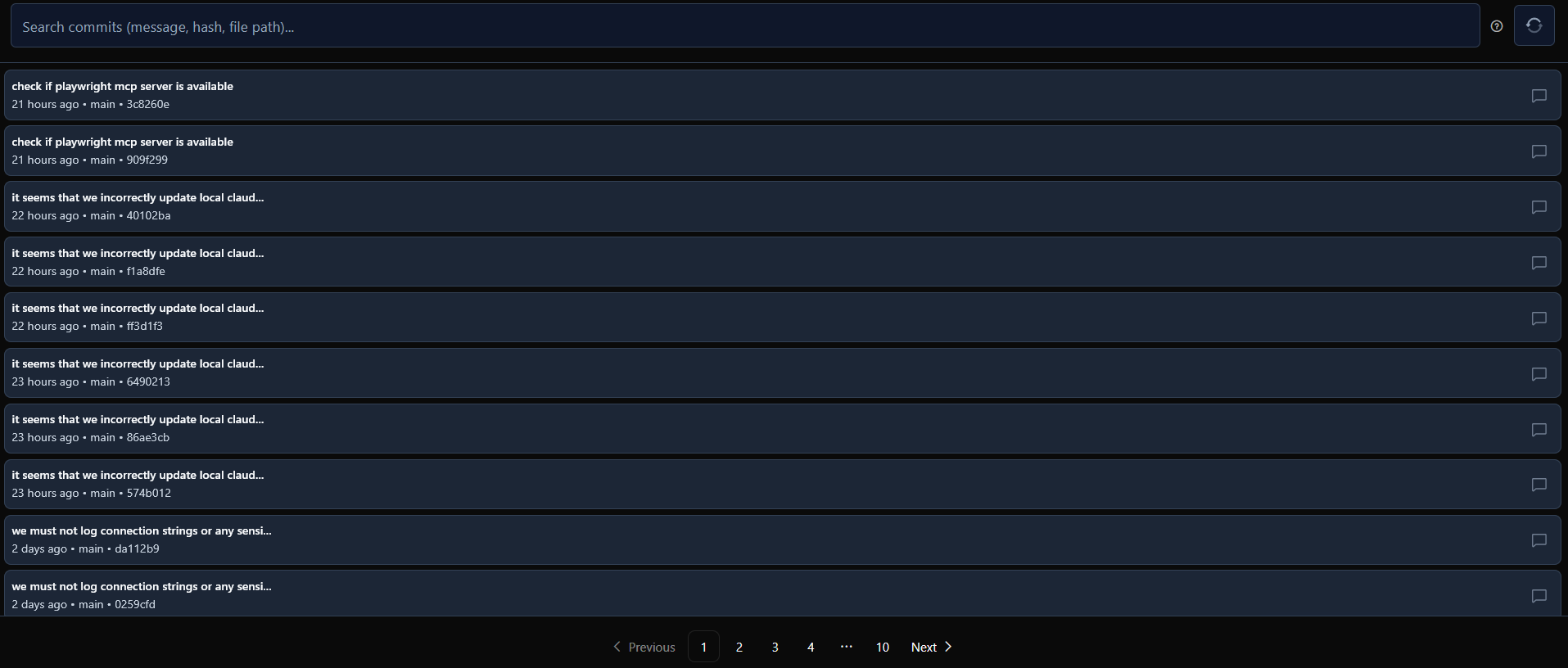
Commit list
In the list, each commit shows:
- Message — the commit’s title
- Relative time — when the commit was made (for example, “2 hours ago”)
- Branch — the branch the commit belongs to
- Short hash — the first 7 characters of the commit’s unique number
- Chat icon — if the commit is linked to a conversation, the icon opens that chat
Search and filtering
The commit list can:
- Search — text from the search box filters commits by message, hash, or file path; results update as you type (with a 300 ms delay)
- Branch filter — the branch icon filters commits down to one branch; the active filter shows as a badge with a “×” button for clearing it
- Pagination — commits are shown 10 per page, with navigation buttons
Viewing commit details
Click a commit in the list to open its detail card. It contains:
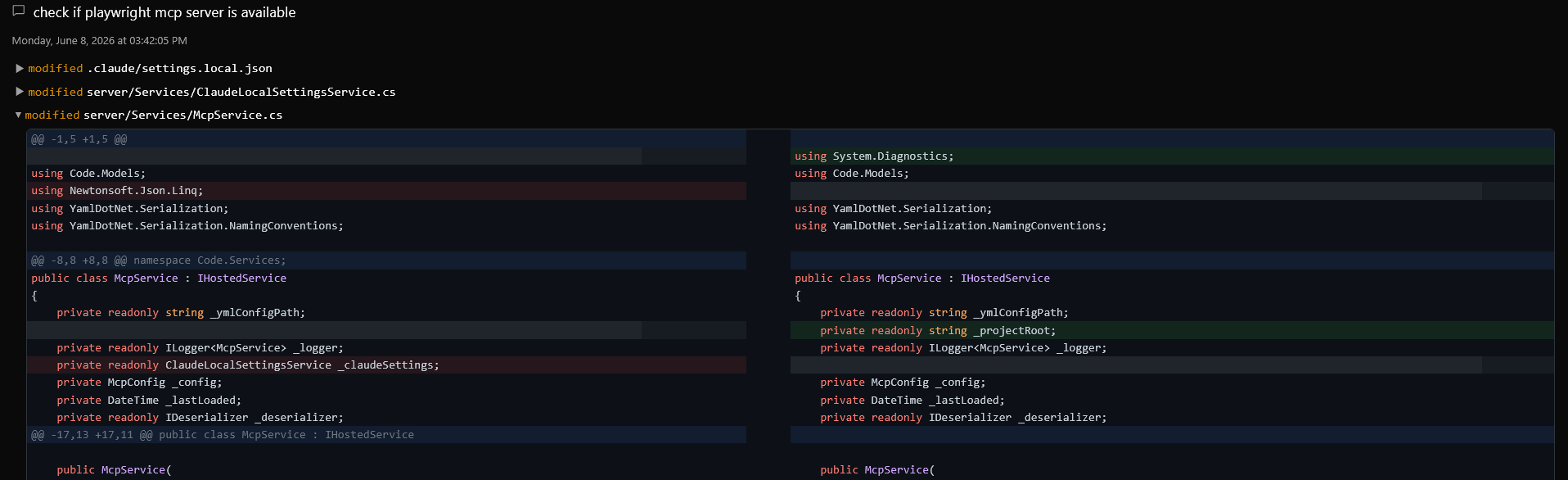
- Full commit message
- Date and time — the full date in a readable form
- Chat link — if the commit is linked to a conversation, the link opens that chat
- Changed files — the commit’s file list, each file with a color-coded status mark:
- Added — green
- Deleted — red
- Modified — yellow
- Renamed — blue
Click any file to expand its diff — a clear view of the difference between the old and new versions. You can view it side by side or line by line.
How chats and commits connect
When Claude Code commits changes during a conversation (say, you asked for a bug fix and the agent recorded the fix), the commit is automatically linked to that chat. This gives you a traceable connection between your conversations and the code changes they produced.
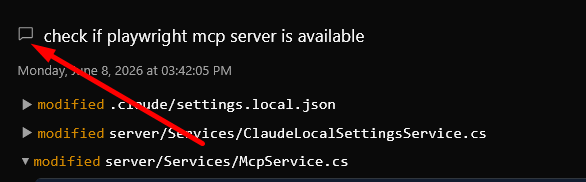
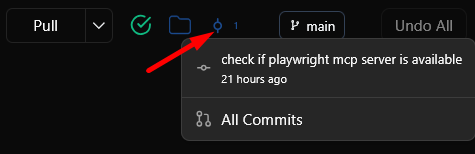
Linked commits carry a chat icon in both the list and the detail card — it opens the conversation that led to the commit.
The Refresh button on a repository’s commit list re-imports commits from Git and re-checks their chat links. This is useful when commits were made outside Xedant Agent and need to be synced.
Git Commits menu
The commits menu in the Git sidebar gives you quick access to the current chat’s commits right from the chat window, without going to the Commits page.
Navigation
The Commits section is organized as breadcrumbs:
- Commits — the repository overview (shows all repositories)
- Commits → Project — the commit list of the project repository
- Commits → Project → abc1234 — the detail card of a specific commit (the hash is copied with a button)