Git change validation shows what the AI actually does to your files, in real time. Where chat output validation tells you what the model intended to change, git change validation is the fact on the ground: the real state of the file system. Xedant Agent watches repository changes live and links them to your conversations, so every edit is easy to trace back.
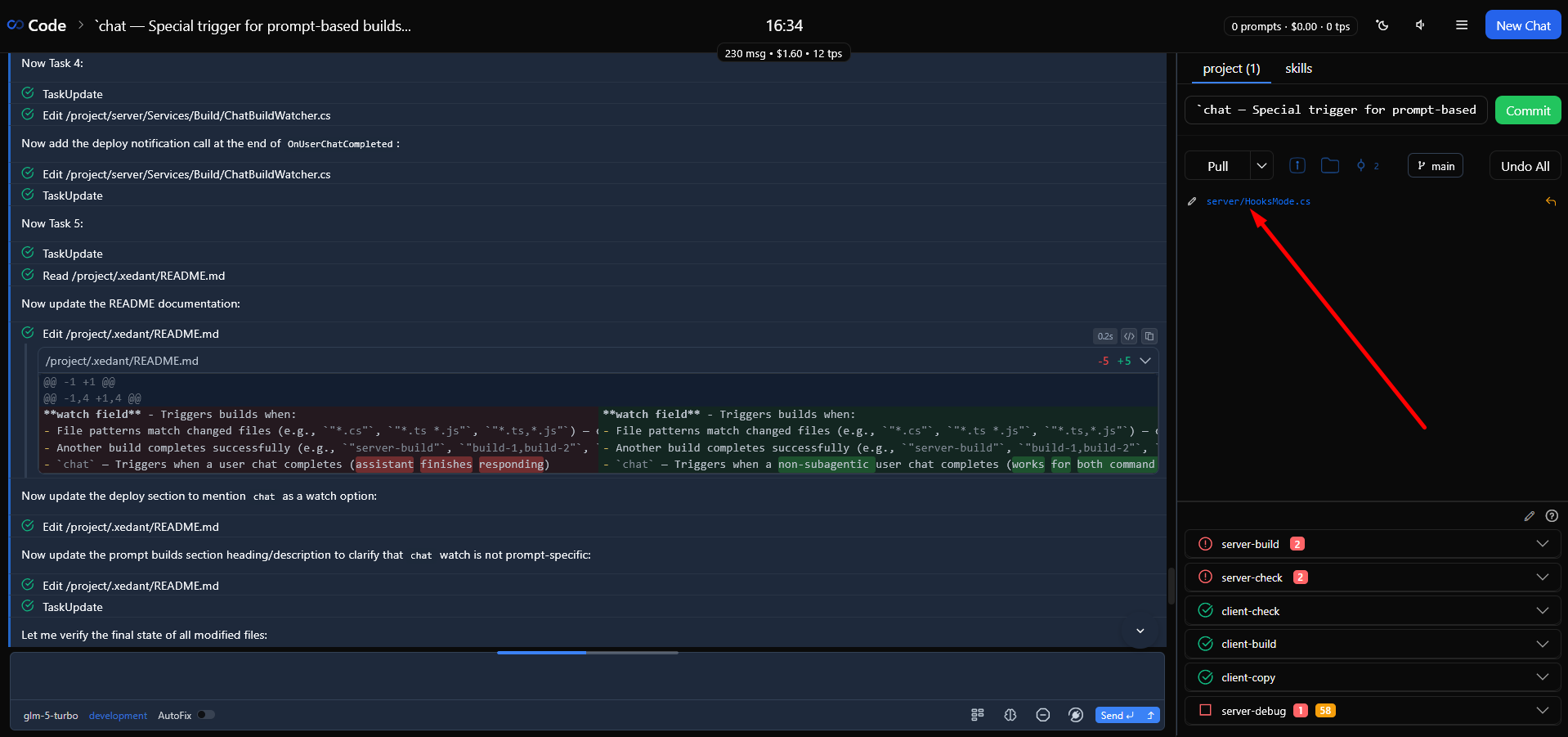
The Git panel
The Git panel sits to the right of the chat view and shows the current state of your repository. It refreshes instantly whenever the model changes files, and once every 15 seconds it double-checks with the server, so nothing slips through.
- One repository — the panel tracks your project’s single Git repository, which includes both the main workspace and the skills folder (
.claude/skills). All changes are visible in one shared list; - File list — every changed file appears with its relative path and a status icon (modified, added, deleted, renamed, untracked); staged files get their own icon, so you can tell at a glance what is already marked for the next commit;
- Status caching — git status is recomputed at most once every 2 seconds, so frequent updates never overload the system.
The file list is sorted alphabetically and capped at 1000 files to stay fast; a “show more” control reveals the rest if you ever need them. In everyday work you rarely need to look at more.
Quick commit and undo
Commit and undo are both available right on the Git panel, in one click — no need to switch to a separate git interface.
Quick commit
- The commit message is filled in automatically from the chat’s title — a chat named “Add user authentication” becomes the commit message “Add user authentication”;
- Click Commit (or press Enter), and every change is staged, committed, and pushed to the remote repository in a single action;
- The commit is automatically linked to the current chat, so you can always see later which conversation led to it.
The commit message and the chat title stay in sync: edit one, and the other updates too.
🎉 Every successful commit is celebrated with confetti and a sound. The sound can be turned off with the speaker icon in the header or configured in Settings → Sound Settings; confetti is turned off there too, with the Confetti On toggle.
Undoing a file
Every changed file in the Git panel has an undo button — it returns that one file to its previous state:
- Tracked files — restored to their last committed state with
git checkout -- path; - Untracked files — simply deleted from the file system.
There is also an “Undo All” button that resets every change at once: git checkout -- . for tracked files and git clean -f -d for untracked ones. It helps when the model has made a mess and it is easier to start over. After a serious mistake, wiping everything and starting clean in a new chat is usually faster than picking through dozens of wrongly modified files.
Linking chats and commits
Every commit created through the interface is automatically linked to the active chat. The result is a two-way history: from a commit you can get back to the conversation that created it, and from a chat you can see all the commits it produced.
From chat to commits
The Git panel has a dropdown with the current chat’s commits: the message, the date, and a clickable link to the commit’s details. In the chat list, chats with linked commits show the number of those commits.
From commits to chat
The Commits page gathers all commits from all chats: hash, message, date, branch, and the linked chat when there is one. The “Open linked chat” button opens the conversation that led to the change — a handy way to recall the context and the reason behind an edit.
The project repository
Xedant Agent tracks one project git repository, which includes both the code and the skills (.claude/skills/):
- Project code — the main workspace folder. Commit messages are generated automatically from the chat’s title;
- Skills — the
.claude/skillssubfolder. Edits the model makes to skill files (instructions, scripts, helper documents) appear in the same shared change list and are committed together with the project.
Effective review habits
- Review changes before committing — when the model finishes, skim the Git panel. Unexpected changes — files you never asked to touch — are a sure sign the model went off track;
- Undo bad edits — if the model did too much, undo single files or everything at once, then explain what went wrong and let it try again. After a serious mistake it is easier to undo everything and start fresh in a new chat than to make the model fix dozens of files;
- Commit often — set a checkpoint after every successful task. If the next attempt goes wrong, you return to a known good state, and the linked commits help you find the right conversation;
- Study the commit history — look at the Commits page from time to time for the big picture of changes across sessions. Do the same unwanted changes keep repeating? Prevent them in advance with hooks,
CLAUDE.md, or skills.
The complete git reference is on the Git page, the commit history in the Commits section, and commit automation in Model Control with Hooks.